

Bulin 47 AI Video: How to Make Your Own Viral Trend
October 11, 2026 | LUCAS
Bulin 47 AI Video: How to Recreate the Viral Trend with Your Own Photo
Have you seen the viral Bulin 47 videos taking over social media? The energetic freestyle, expressive body movements, and distinctive performance have inspired creators to experiment with AI-generated videos.
Now, you can create your own version without learning complicated dance moves or spending hours editing footage. With Viddo AI Motion Control, you can upload a Bulin 47 reference video, add a photo of yourself or another person who has given permission, and let AI transfer the reference movements to the person in your image.
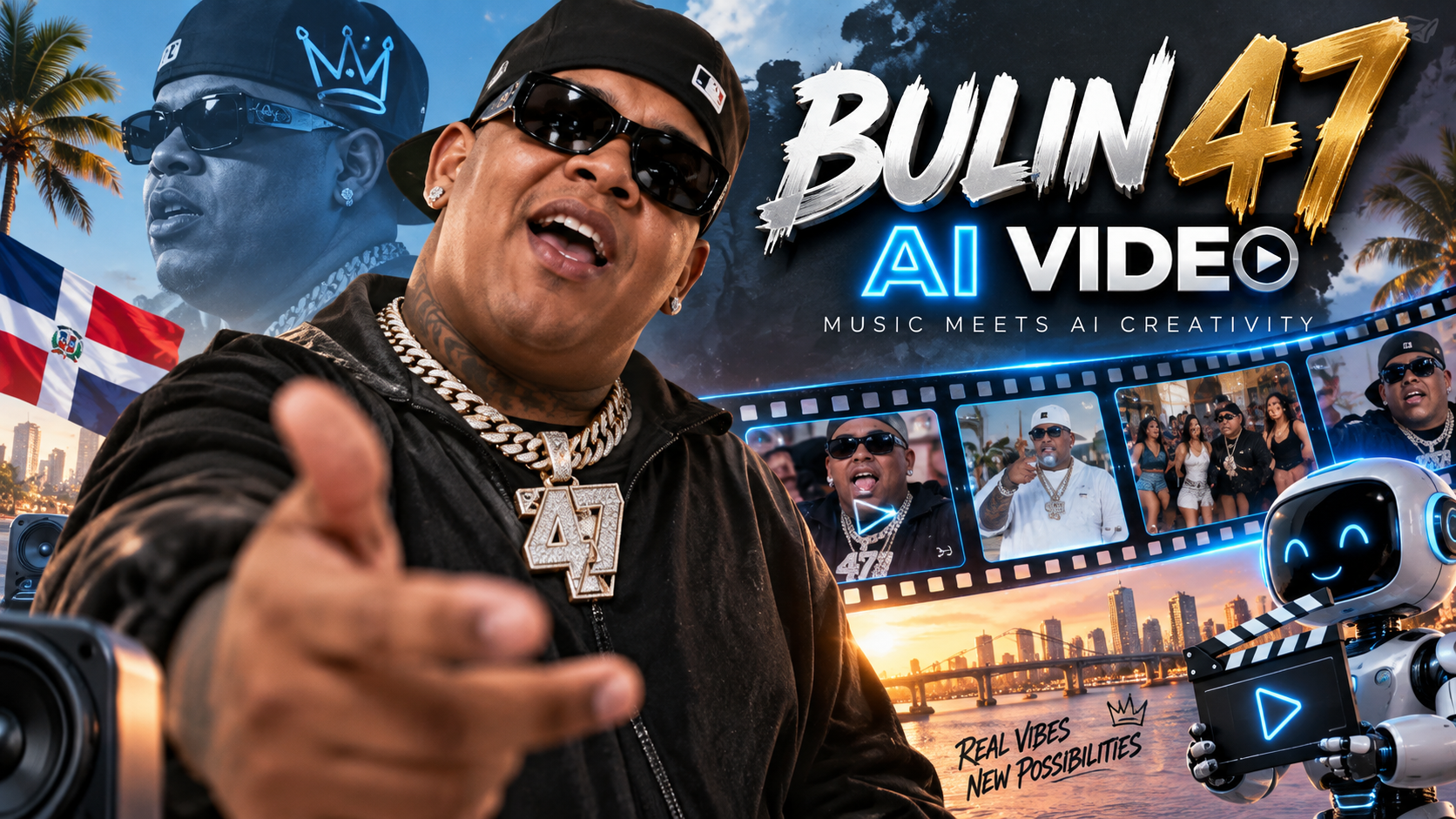
Whether you want to join a viral trend, create entertaining social media content, or experiment with AI motion transfer, this guide will show you how to get started.
Ready to create your own Bulin 47 AI video?
Try Viddo AI Motion Control and turn a static photo into a dynamic video.
What Is the Bulin 47 AI Video Trend?
The Bulin 47 AI video trend is a creative way to use artificial intelligence to recreate a recognizable freestyle performance with a different person as the main subject.
Instead of recording yourself performing the same movements, you can use an existing reference video and let AI generate a new version featuring the person in your uploaded photo.
The concept is simple: use one video to provide the movement and one image to provide the appearance of the person you want to animate.
This approach makes it easier for creators to experiment with viral video formats, even if they have little experience with filming, animation, or professional video editing.
Why Are Creators Interested in Bulin 47 AI Videos?
Several factors make this type of AI video appealing:
-
Easy to personalize: Create a version featuring yourself or another consenting person.
-
Less manual editing: AI handles much of the motion-transfer process.
-
Creative flexibility: Experiment with different photos and reference performances.
-
Social media potential: Create short-form content for platforms such as TikTok, Instagram Reels, and YouTube Shorts.
-
Beginner-friendly workflow: You do not need advanced animation skills to get started.
The appeal goes beyond one particular trend. The same motion-transfer technique can also be used for dance videos, character animation, promotional content, and other creative projects.
How to Make a Bulin 47 AI Video with Viddo AI
You can create a personalized Bulin 47-style video using Viddo AI Motion Control. Instead of relying on a single predefined template, you provide the reference video and image you want to use.
Follow these steps to create your video.
Step 1: Find a Bulin 47 Reference Video
First, prepare a Bulin 47 freestyle or dance video that you are authorized to use.
Choose footage in which the main performer's body movements are clearly visible. A video with stable framing, sufficient lighting, and relatively smooth movements can make it easier for AI to interpret the performance.
For best results, consider these tips:
-
Choose a video with a clearly visible main subject.
-
Avoid footage with excessive camera shaking or frequent scene changes.
-
Make sure the important movements are not hidden by other people or objects.
-
Use a reference video that meets Viddo's supported format and duration requirements.
Viddo AI Motion Control supports MP4 and MOV reference videos, with a maximum file size of 100 MB. The supported duration depends on the selected character-orientation setting.
Step 2: Upload Your Photo
Open Viddo AI Motion Control and upload the image of the person you want to feature in the generated video.
For a better result, choose a clear photo with good lighting and a visible head, shoulders, and torso. A full-body image can be helpful when the reference performance involves extensive body movements.
Keep these recommendations in mind:
-
Use a sharp, high-quality image.
-
Make sure the person's face and body are clearly visible.
-
Avoid heavily cropped photos when the reference video involves full-body movements.
-
Choose a photo whose pose and orientation are suitable for the reference performance.
Viddo supports JPG, JPEG, and PNG images for this Motion Control workflow.
Step 3: Upload the Bulin 47 Video
Next, upload your reference video to the video-upload section of the Motion Control page.
The reference video provides the movement information, while your uploaded image provides the visual appearance of the person to be animated.
AI then processes the two inputs to generate a video in which the subject follows the reference movements.
This is the key difference between motion control and simply animating a still image: rather than asking AI to invent an entirely new sequence of movements, you provide a specific performance for it to follow.
Step 4: Adjust Your Settings and Add a Prompt
Before generating your video, review the available settings.
Viddo AI Motion Control offers 720p and 1080p resolution options, along with character-orientation settings.
The orientation setting affects how the generated character is aligned with the reference:
-
Image orientation: Follows the orientation of the person in the uploaded image. This mode supports videos up to 10 seconds.
-
Video orientation: Follows the orientation of the character in the reference video. This mode supports videos up to 30 seconds.
You can also enter an optional prompt to describe additional adjustments you want the AI to make.
For example:
"Keep the main dance movements consistent with the reference video, make the body movements look natural, and preserve the person's facial features as much as possible."
A concise prompt that focuses on your main requirements is generally a good starting point. Actual results depend on the input materials, selected settings, and AI model.
Step 5: Generate and Download Your Video
Once you have uploaded both files and checked the settings, click Generate.
Viddo AI will process your inputs and create a new video based on the reference movements and uploaded image.
After generation, preview the result to check whether the movements, appearance, and overall composition meet your expectations. If necessary, adjust your inputs or prompt and generate another version.
When you are satisfied with the result, save the video and prepare it for your preferred social media platform.
Start creating: Open Viddo AI Motion Control
Tips for Getting Better Bulin 47 AI Video Results
The quality of your output depends partly on the quality of your source materials. A few practical adjustments can help you get more consistent results.
Choose a Clear Reference Video
Motion transfer works best when the main subject is easy to identify and the movements are visible. Avoid reference footage with excessive motion blur, complex transitions, or frequent changes in camera angle.
Match the Photo to the Performance
Think about what the reference video requires. If the performer moves their arms and shoulders extensively, choose an image in which those body parts are visible.
A tightly cropped portrait may be less suitable for a performance involving full-body movement.
Keep Your Prompt Simple
You do not need to write a long description of every movement. Start with the main requirements, such as natural body motion, consistent appearance, or a particular visual style.
If the first result is not satisfactory, change one element at a time so you can better understand which adjustment helps.
Experiment with Different Photos
The same reference performance can produce different results when paired with different images. You can experiment with different outfits, poses, and visual styles, provided the images are appropriate for the intended movement.
Always use images you own or have permission to use, especially when creating videos of other people.
What Else Can You Create with AI Motion Control?
Bulin 47-style videos are just one possible application. Motion Control can also help creators explore many other formats.
Dance and freestyle videos: Apply recognizable dance movements to a different subject and experiment with personalized performances.
Social media entertainment: Create playful videos featuring yourself or consenting friends without recording every movement from scratch.
Character animation: Bring suitable character images to life by using a reference performance to guide their movements.
Marketing and promotional content: Experiment with motion-based demonstrations, presenter movements, and other short promotional videos.
Creative storytelling: Use reference footage to explore different characters, scenes, and visual concepts.
If you are looking for more ways to create AI videos, explore Viddo AI's video generation tools to discover other creative workflows.
Frequently Asked Questions
1. Can I make a Bulin 47 AI video using just one photo?
For the Motion Control workflow described in this guide, you need both a photo and a reference video. The photo supplies the appearance of the person, while the video provides the movements.
2. Do I need to know how to dance?
No. You can use an existing reference performance rather than recording yourself dancing. The AI uses the supplied video to guide the generated subject's movements.
3. What video formats does Viddo AI Motion Control support?
The Motion Control page supports MP4 and MOV reference videos, with a maximum upload size of 100 MB. The supported duration depends on the character-orientation setting.
4. What image formats can I upload?
The current Motion Control workflow supports JPG, JPEG, and PNG images. For the best results, use a clear image with good lighting and a visible subject.
5. Can I use my own dance video instead of a Bulin 47 video?
Yes. You can use another suitable reference performance, provided you have the necessary rights or permission to use the footage. This allows you to create personalized motion-transfer videos beyond the Bulin 47 trend.
6. Will the generated video look exactly like the reference?
Not necessarily. Motion Control is designed to transfer movements from a reference video, but the final result can vary depending on the image, reference footage, and generation settings. You may need to experiment with different inputs to achieve your desired result.
7. Can I use Motion Control on my phone?
Viddo AI Motion Control is available through a web browser, so you can access it on a supported mobile device or desktop without installing a separate application. Your experience may vary depending on your browser and device.
8. Can I publish my generated Bulin 47 AI video on social media?
You can prepare generated videos for social media, but you should make sure you have the necessary rights to use the reference footage, music, and other protected materials. You should also obtain permission before using another person's likeness and follow the rules of the platform where you publish the video.
Create Your Own Bulin 47 AI Video Today
The Bulin 47 AI trend demonstrates how motion-transfer technology can make video creation more accessible. Rather than filming a performance yourself, you can use a reference video and a photo to explore a new creative direction.
With Viddo AI Motion Control, the process is straightforward: upload your photo, provide a suitable reference video, adjust your settings, and generate your result.
You can start with the Bulin 47 freestyle and then experiment with other dance performances, character animations, and creative video ideas.
Ready to bring your photo to life?
Try Viddo AI Motion Control and create your next AI-powered video.