

Kling 4.0 AI Video Generator: Features & Guide
October 22, 2026 | AVON
Kling 4.0 AI Video Generator: Features, Keyframes & More
What Is Kling 4.0?
Kling 4.0 is a next-generation AI video generation model designed to give creators greater control over motion, visual consistency, audio, and storytelling. It builds on earlier Kling models with longer single-generation videos, richer reference inputs, multi-keyframe control, and improvements to audiovisual quality.
Whether you are creating cinematic short films, product advertisements, music videos, social media content, or character-driven stories, Kling 4.0 provides more ways to turn creative ideas into dynamic video content.
One of its biggest advantages is the combination of multiple creative controls in a single workflow. Instead of relying entirely on a text prompt, creators can guide the generation process with reference images, video clips, subject references, and keyframes.
In this guide, we will explore the main features of Kling 4.0, explain how they work, and show how you can use them for different AI video projects.
Key Features of Kling 4.0 at a Glance
Kling 4.0 introduces several important capabilities for AI video creation.
-
Up to 30-second video generation: Generate videos ranging from 3 to 30 seconds in a single generation.
-
Up to 15 combined reference assets: Combine supported images, videos, subject references, and voice references to guide the output.
-
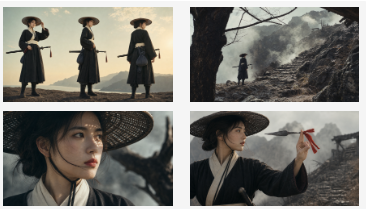
Up to 10 keyframes: Define important visual moments and guide how a scene develops over time.
-
Improved audio-visual synchronization: Create more natural lip-sync and better-coordinated audio and visual performances.
-
More stable dynamic motion: Improve the handling of complex actions, camera movements, and continuous motion.
-
High-resolution output: Support for 720p, 1080p, and 4K, depending on the selected generation settings.
-
Flexible aspect ratios: Create content for vertical social videos, standard widescreen projects, and cinematic formats.
-
Stronger prompt understanding: Describe more detailed scenes, character actions, camera directions, and storytelling requirements.
These features make Kling 4.0 particularly useful for creators who want more than a short animated clip. It offers additional tools for controlling how a video looks, moves, sounds, and develops.
1. Generate Videos Up to 30 Seconds in a Single Generation
One of the most noticeable upgrades in Kling 4.0 is its support for native video generation from 3 to 30 seconds.
Short AI video clips are useful for simple animations, but they can be restrictive when a scene requires several actions or a more gradual narrative. With a longer generation duration, creators have more room to develop a sequence without immediately splitting it into multiple clips.
For example, you could create a product advertisement in which a bottle appears on a table, the camera moves closer, the lighting changes, and the product is revealed in a final hero shot.
You could also generate a short cinematic scene in which a character enters a room, notices something unexpected, and reacts naturally.
Why Does 30-Second Video Generation Matter?
A longer generation duration can help with:
-
Storytelling: Give a scene more time to develop.
-
Product demonstrations: Show several stages of a product reveal.
-
Character performances: Allow more room for gestures and reactions.
-
Social media content: Create more complete short-form video concepts.
-
Cinematic sequences: Develop camera movement and atmosphere over a longer shot.
A 30-second generation does not guarantee perfect continuity, but it gives the model more time to develop the requested sequence.
For creators working on more complex projects, this can reduce the need to assemble every idea from very short clips.
2. Combine Up to 15 Reference Assets with Omni Reference
Another major feature of Kling 4.0 is Omni Reference, which provides more control over the visual and contextual information used to generate a video.
Rather than describing every detail through text, creators can supply reference materials to help communicate their intended result.
Kling 4.0 supports up to 15 combined reference assets in a single generation, subject to the model's input requirements and limits.
These references can include:
-
Up to 10 reference images.
-
Up to 5 reference videos, with a combined duration of up to 30 seconds.
-
Up to 7 subject references.
-
Supported voice references.
The total number of reference assets is subject to the overall limit, so the individual maximums should not be interpreted as separate allowances that can always be combined in full.
How Can Reference Assets Improve AI Videos?
Character consistency
Use character images to help preserve a person's appearance, hairstyle, clothing, and other visual details across a scene.
Product accuracy
Provide product images from different angles to guide the appearance of packaging, materials, colors, and design features.
Motion and camera guidance
Use a reference video to communicate movement, camera direction, performance style, or scene pacing.
Visual style
Supply images that illustrate the desired atmosphere, composition, lighting, or artistic direction.
Voice and character performance
Where supported, voice references can help guide the intended vocal characteristics of a subject.
For example, imagine creating an advertisement for a new pair of sneakers. You could provide product reference images, a model reference, and a video showing the desired camera movement. These inputs give the model more information than a short text prompt alone.
Omni Reference is particularly valuable when a project requires specific visual details rather than an entirely improvised result.
3. Control Your Video with Up to 10 Keyframes
Kling 4.0 supports up to 10 keyframe images, giving creators greater control over important moments in a generated video.
A keyframe represents a visual state that you want the video to follow. By providing multiple keyframes, you can communicate how the scene should change from one moment to another.
This is useful when you already have a clear idea of the beginning, middle, and end of a video.
What Can You Control with Multiple Keyframes?
Keyframes can help guide:
-
Character positions and poses.
-
Scene changes and visual transitions.
-
Camera movement and composition.
-
Product entrances and reveals.
-
Important moments in a narrative.
-
The progression of a visual action.
Example: Creating a Product Advertisement
Imagine that you want to create a short advertisement for a luxury watch.
You could organize the keyframes around several important moments:
-
The watch rests on a dark surface.
-
A close-up reveals the watch face.
-
Light moves across the metal case.
-
The camera shifts to show the side profile.
-
The watch rotates to reveal the strap.
-
The final frame presents the complete product in a premium setting.
With multiple keyframes, you can provide visual guidance for the sequence instead of describing every transition exclusively in text.
The model still determines how to interpolate between the supplied images, so the result may not follow every detail exactly. However, keyframes provide a more structured approach to visual storytelling.
4. Improved Audio-Visual Synchronization and Lip-Sync
Audio plays an important role in making an AI-generated video feel convincing. A visually realistic character can still look unnatural if the mouth movements do not match the dialogue or if the sound feels disconnected from the scene.
Kling 4.0 emphasizes improved audiovisual quality, including more accurate lip-sync and two-channel stereo audio output.
These improvements are especially relevant to videos that feature speaking characters, singing performances, or other audio-driven scenes.
What Can Improved Lip-Sync Help You Create?
AI talking videos
Create scenes in which a character speaks to the camera, delivers a message, or participates in a conversation.
Music videos
Develop visual performances that combine expressive facial movements with an audio track, where supported by the selected workflow.
Product advertisements
Create presenter-style videos in which a character introduces a product or explains its benefits.
Short dramas
Build dialogue-driven scenes with more natural relationships between facial movements and spoken words.
Multilingual content
Kling 4.0 supports multiple languages and accents, expanding the possibilities for creators working with international audiences.
Keep in mind that improved lip-sync does not mean every generation will perfectly reproduce lyrics or synchronize every word. Results depend on the model settings, audio inputs, language, and complexity of the scene.
If accurate dialogue or singing is essential, review the generated output carefully before publishing.
5. More Stable Motion and Natural Camera Movements
Motion quality is one of the most important factors in AI video generation.
A model may produce an attractive opening frame but struggle when the subject begins running, dancing, turning, or interacting with other objects. Complex camera movements can also cause visual inconsistencies if the scene is not handled well.
Kling 4.0 focuses on improving dynamic motion and the stability of complex camera work.
Examples of Motion and Camera Work
Tracking shots: Follow a moving subject through a scene.
Orbit shots: Move the camera around a character or product.
Push-ins and pull-outs: Move closer to or farther away from the subject.
Continuous action: Depict a sequence of movements within a longer shot.
High-speed scenes: Create more dynamic visual sequences involving sports, running, or action.
These capabilities are useful for cinematic storytelling, fashion videos, dance content, product showcases, and other projects that rely on movement.
For better results, describe both the subject's movement and the camera's behavior. For example, instead of writing only "a woman walks through a city," you could specify that the camera follows her from behind before moving to a side angle.
Clear movement instructions help communicate the intended visual direction.
6. High-Resolution Output and Flexible Aspect Ratios
Kling 4.0 supports output resolutions of 720p, 1080p, and 4K, depending on the available settings and generation workflow.
It also supports several aspect ratios, including:
-
16:9: Suitable for standard widescreen videos and many YouTube projects.
-
9:16: Ideal for vertical content such as TikTok, Instagram Reels, and YouTube Shorts.
-
1:1: Useful for square social media content.
-
21:9: Suitable for ultrawide cinematic compositions.
The model also introduces 10-bit HDR output at supported 1080p and 4K settings, providing greater color depth and smoother tonal transitions in compatible workflows.
Why Do Resolution and Aspect Ratio Matter?
Different platforms and creative projects have different visual requirements.
A vertical product demonstration needs a different composition from a widescreen film scene. Similarly, a cinematic night scene may benefit from detailed shadow and highlight handling, while a social media animation may prioritize speed and clear subject framing.
Selecting the appropriate output format at the beginning can help you create content that fits its intended destination.
Higher resolution alone does not guarantee a better video. Motion quality, reference consistency, lighting, and prompt clarity remain important.
7. Better Prompt Understanding for More Detailed Scenes
Kling 4.0 supports longer prompts, with an official input limit of up to 8,000 tokens.
This provides more room to describe complex scenes, character behavior, camera directions, atmosphere, and narrative progression.
For example, a simple prompt might say:
"A man walks into a modern office."
A more detailed prompt could describe the man's clothing, the office layout, the lighting, the camera's movement, and how the character reacts to another person entering the room.
The additional context can help communicate your creative intention more precisely.
However, longer prompts are not automatically better. Repetitive or contradictory instructions can make the intended result less clear.
Tips for Writing Better Kling 4.0 Prompts
Describe the subject first. Establish who or what appears in the video.
Explain the action. Describe what happens, in what order, and how the subject moves.
Specify the environment. Include relevant details about the location, lighting, and atmosphere.
Guide the camera. Mention whether the camera should remain fixed, follow the subject, or move closer.
Define the visual style. Use clear terms such as realistic, cinematic, documentary, or stylized animation.
Use references where appropriate. If the appearance or movement must follow a specific example, provide suitable reference assets rather than relying exclusively on text.
Combining a clear prompt with reference images and keyframes can provide a more structured way to guide the final video.
8. What Can You Create with Kling 4.0?
Kling 4.0's combination of longer generation, reference control, keyframes, motion handling, and audiovisual improvements makes it suitable for a wide range of creative applications.
AI Video for Social Media
Create short-form entertainment, character animations, trend-inspired videos, and visually engaging clips for social platforms.
Product Advertising
Use product references and keyframes to guide the appearance, camera angles, and progression of an advertisement.
Cinematic AI Short Films
Develop character-driven scenes with more detailed motion, camera direction, and narrative structure.
Fashion and Beauty Videos
Experiment with model references, clothing details, lighting, and camera movements to create polished fashion content.
Music and Performance Videos
Create scenes involving expressive characters, singing performances, or rhythm-inspired movement, depending on the selected audio workflow.
Educational and Presenter Videos
Develop talking-character content and presenter-style scenes for explaining ideas, introducing products, or communicating information.
Across all these use cases, the most effective workflow depends on the desired result. A simple social clip may need only one image and a concise prompt, while a commercial project may benefit from multiple reference assets and keyframes.
9. Kling 4.0 vs. Earlier Kling Models
Kling 4.0 builds on earlier model capabilities with additional control over video length, references, and narrative progression.
| Feature | Kling 4.0 |
|---|---|
| Single-generation duration | 3–30 seconds |
| Combined reference assets | Up to 15 |
| Reference images | Up to 10 |
| Reference videos | Up to 5, with a combined duration of up to 30 seconds |
| Keyframe images | Up to 10 |
| Output resolution | 720p, 1080p, and 4K, depending on settings |
| Audio | Two-channel stereo output |
| Lip-sync | Improved audiovisual synchronization |
| Camera movement | Enhanced dynamic motion and camera control |
| Aspect ratios | 16:9, 9:16, 1:1, 21:9, and other supported settings |
The biggest change is not simply a higher resolution. Kling 4.0 provides more ways to guide the video before generation, from reference materials to keyframes, while giving scenes more time to develop.
Actual capabilities and available settings may vary by platform, model access, and generation workflow.
10. How to Create AI Videos with Kling 4.0 on Viddo.ai
If Kling 4.0 is available in your Viddo.ai model selector, you can use the platform's video generation workflow to experiment with its capabilities.
Step 1: Open Viddo.ai
Visit Viddo.ai and navigate to the AI video generation interface. Select Kling 4.0 if it is available to your account.
Step 2: Choose Your Generation Method
Decide whether to start with a text prompt, an image, or supported reference materials. Your choice should reflect how much visual control you need.
Step 3: Prepare Your References
For projects that require consistent characters, products, or visual styles, prepare suitable reference images or videos.
If you want to control specific moments in a sequence, prepare the keyframe images before generating.
Step 4: Write Your Prompt
Describe the subject, action, environment, camera movement, and visual style. Include relevant audio instructions if your selected workflow supports them.
Step 5: Configure the Available Settings
Choose a suitable duration, aspect ratio, and resolution based on your project and the options available in the interface.
Step 6: Generate and Review
Generate the video and check its motion, composition, character consistency, and audio synchronization. If the result does not match your expectations, refine the prompt or reference inputs and try again.
Step 7: Download and Use Your Video
Once you are satisfied with the result, export your creation and prepare it for your intended platform.
Explore Viddo.ai to discover AI video generation tools and experiment with new creative workflows.
Frequently Asked Questions About Kling 4.0
What is Kling 4.0?
Kling 4.0 is an AI video generation model designed to create videos from text, images, and supported reference materials. It offers longer single-generation videos, multi-keyframe control, richer references, and improvements to audiovisual quality.
How long can Kling 4.0 generate a video?
Kling 4.0 supports single-generation durations from 3 to 30 seconds. The exact options available depend on the selected workflow.
How many reference assets does Kling 4.0 support?
Kling 4.0 supports up to 15 combined reference assets, including supported images, videos, subjects, and voice references. Individual input types have their own limits.
How many keyframes can Kling 4.0 use?
Kling 4.0 supports up to 10 keyframe images. These can help guide key moments, scene changes, camera composition, and the progression of an action.
Does Kling 4.0 support lip-sync?
Yes. Kling 4.0 emphasizes improved lip-sync and audiovisual quality. The accuracy of the final result depends on the input, language, audio requirements, and selected workflow.
Does Kling 4.0 support 4K video?
Yes. The model supports 4K output, alongside 720p and 1080p. Actual output options depend on the settings and workflow available to the user.
Can Kling 4.0 generate videos from images?
Yes. Kling 4.0 supports image-to-video generation, as well as text-to-video and reference-guided workflows.
Is Kling 4.0 suitable for commercial video production?
It can be useful for creating product advertisements, promotional videos, social media content, and other commercial projects. Before publishing, review the applicable platform terms and ensure you have the necessary rights to any images, videos, voices, music, and other assets you use.
Final Thoughts: Explore the Creative Possibilities of Kling 4.0
Kling 4.0 introduces a more controlled approach to AI video creation. Its support for up to 30-second generations, 15 combined reference assets, 10 keyframes, improved lip-sync, and more stable motion gives creators additional ways to guide their results.
For simple projects, a clear prompt may be enough. For more demanding videos, combining reference images, video inputs, and keyframes can help establish a clearer visual direction.
As AI video generation continues to evolve, these capabilities make it easier to experiment with cinematic scenes, product advertisements, character performances, and short-form storytelling.
Ready to create your next AI video? Visit Viddo.ai and explore the available video generation models to bring your ideas to life.