

AI Video Workflow: Multi-Model Guide (2026) | Viddo AI
November 27, 2026 | Ryan Carter
An AI video workflow is a repeatable pipeline that connects scripting, reference preparation, clip generation, audio, and delivery, instead of running every step as a separate disconnected tool. Viddo AI runs that pipeline across multiple models, so every stage gets the engine that fits it while the look and the character still hold together.
Most teams do not lose because they picked the wrong model. They lose because the shot list lived in one place, the character sheet lived in another, and the audio was bolted on at the end.
· One brief drives every stage of the run.
· Each stage has a named job and a fixed handoff.
· The finished asset lands where the rest of the work already lives.
· A single change reruns one stage, not the whole project.
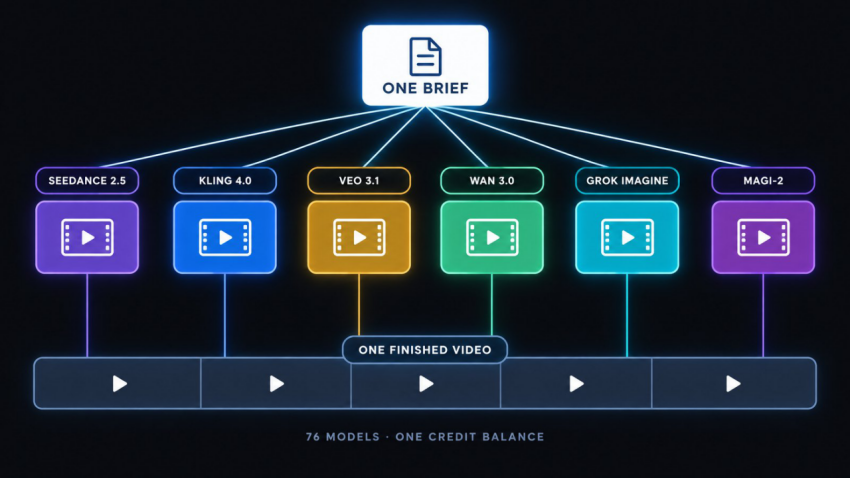
The payoff shows up in the second version of a video, not the first. Regenerating one shot no longer means rebuilding the whole scene, because the reference, the prompt, and the parameter set are already recorded.
What Is an AI Video Workflow
An AI video workflow is a connected sequence of AI models and automation steps that turns a brief, topic, or script into a finished video, where each stage passes its output to the next instead of retyping it at every handoff.
The important part is the word connected. A folder of unrelated clips is not a workflow, because nothing carries forward. On Viddo AI, one workspace holds the models, the credit balance, and the asset library, so the whole run stays in a single tab.
· The character sheet, keyframe, or voice track survives the whole run.
· The pipeline is repeatable, so the second video is faster than the first.
· One change reruns a single stage rather than the entire project.
· Nothing has to be retyped when the next stage starts.
The Five Stages of a Repeatable AI Video Workflow
Strong workflows break the job into the same five stages every time. The stages do not change with the project, which is what makes the second video cheaper than the first.
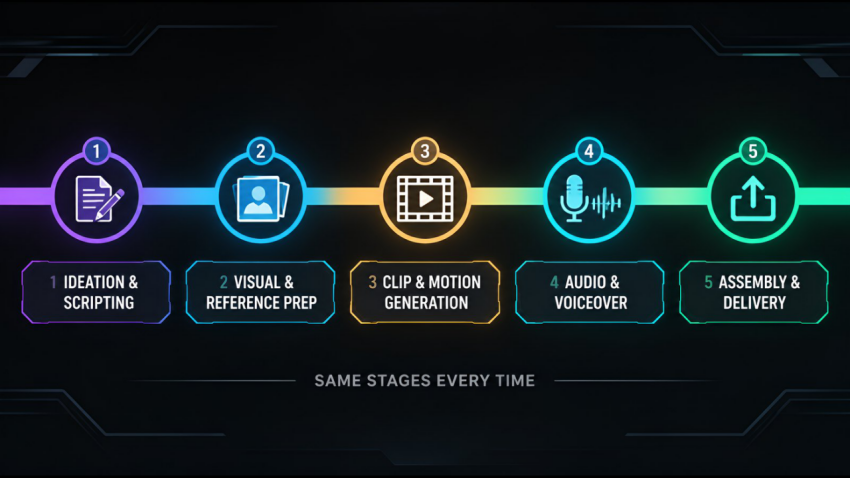
Stage 1 — Ideation and Scripting
Lock the script before any pixels move. Write the hook, the beat list, and the shot order as text, so every later stage has something concrete to obey.
· Fix the runtime target before generating anything.
· Write one line per shot with its intent.
· Mark which shots need dialogue and which do not.
· Give every shot a camera move in the script, not later.
A shot list written here becomes the checkable version of the video. If a line cannot be judged pass or fail, it is not a shot yet.
Stage 2 — Visual and Reference Prep
Generate the starting frames, character references, and style anchors here. This is the stage that decides whether the video stays consistent in shot nine.
· Lock a character sheet before animating the character.
· Choose one reference frame per shot to animate from.
· Keep one lighting and palette reference across the set.
· Use start and end frames when a camera move must land precisely.
Models that accept reference images and reference videos let you carry a product or a face across shots. The reference to video workflow shows how that behaves in practice.
Stage 3 — Clip and Motion Generation
Now the clips get made, and this is where model choice matters most. Different engines are genuinely better at different motion types.
· Match the model to the motion, not to the trend.
· Generate several takes of a hard shot, then pick.
· Keep the aspect ratio and resolution fixed across the set.
· Feed a previous clip forward when a shot must continue one.
If a shot needs a person to turn and speak, choose a model built for dialogue and lip movement. If it needs a fast camera push through a scene, choose a model built for camera motion.
On Viddo AI, image to video and text to video run side by side, so the same brief can go through two engines in one canvas. Models such as Seedance 2.5, Kling 4.0, Wan 3.0, and Grok Imagine V1.5 all sit in that same canvas.
Stage 4 — Audio and Voiceover
Audio is a stage, not a garnish. Generate the voice, the sound effects, and the music against the same shot list the picture came from.
· Write the voiceover script before recording the voice.
· Match the clip length to the audio, not the other way round.
· Keep ambience consistent across the cuts.
· Add music last, under the dialogue.
Viddo AI ships text to speech, voice cloning, sound effects, and an AI music generator. The voice, the sound bed, and the track all come from one account.
For characters that need to say lines, lip sync matches the mouth against the finished audio.
Stage 5 — Assembly, Polish, and Delivery
The last stage turns separate clips into a deliverable. Stitch, trim, caption, upscale, and export to the ratios the channel needs.
· Cut the clip order to the script, not to what rendered best.
· Add captions for silent autoplay on social feeds.
· Export the same master to every aspect ratio you need.
· Keep the source clip names tied to the shot numbers.
Viddo AI includes an AI video editor for this stage, and long video to shorts handles the long-to-short cut when that is the deliverable.
Three Ways Teams Build These Workflows
The five stages are the same everywhere. How you run them is not, and three shapes cover almost every real setup.
Node-Based Canvases
Visual pipelines where you link prompt, image, video, and audio nodes and can swap the model behind any node. The strength is reuse, since a saved setup becomes a template for the next project.
· Best when many videos share one structure.
· Model swaps happen without touching the surrounding steps.
· Local tools such as ComfyUI follow the same pattern.
· The cost is a learning curve on the canvas itself.
All-in-One Creative Suites
Unified workspaces that combine generation, character and frame references, and editing tools in one place. The strength is fewer file handoffs, since the reference never leaves the app.
· Best for creators working solo or in small teams.
· Version sprawl drops because the assets stay in one library.
· Editing and generation share the same project context.
· Switching models can mean switching tiers of plan.
Automated Pipelines
Background workflows that pull from a spreadsheet or a scheduler, generate the script, visuals, and voiceover, assemble the clips, and publish. The strength is volume, since the same run repeats unattended.
· Best for scheduled social calendars and catalog updates.
· Triggered by a sheet, a schedule, or a webhook.
· Often assembled from n8n, Make, or direct model API calls.
· Guardrails matter more here, because nobody watches each run.
Why One Model Rarely Carries a Whole Project
Every model is strong at some stages and merely acceptable at others. Running one engine end to end usually means accepting the weakest stage.
· No single model covers scripting, picture, voice, and music equally well.
· Dialogue shots and camera-move shots have different best engines.
· A model tuned for stills often wastes seconds on a long take.
· The cost of a full run on one expensive model is high.
The practical move is a hybrid: use the cheapest engine that can hold the shot, and spend the expensive model only on the shots that earn it.
On Viddo AI every model draws on the same balance, so switching engines mid-project never means opening a second account.
Matching Each Shot to the Right Model: Seedance, Kling, and Veo
Model selection gets easier once you treat it as a lookup rather than a judgment call. Ask what the shot has to do, then pick the engine whose documented fields support that job.
· Dialogue and lip movement — native audio and lip sync. Seedance 2.5, MAGI-2, Kling 4.0.
· Precise camera move — start and end frames. Kling 3.0, Vidu Q3 Pro, Pixverse V6.
· Product consistency — reference elements. Kling 4.0, which also keeps original sound.
· Long clip with live context — web search and duration. Seedance 2.0, Seedance 2.5.
· Fast draft pass — a draft flag. Flux 3.0.
· Music-driven clip — a sound parameter. Pixverse V6, Flux 3.0.
· Restyle an existing clip — video-to-video and style. Runway Aleph, Video Style Transform.
· Continue the previous take — a task reference. Video Extend.
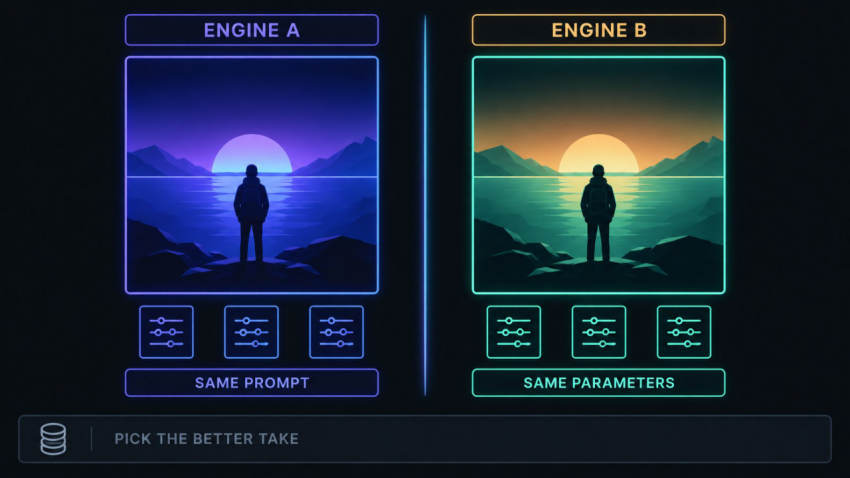
Read the Field Contract, Not the Model Name
The most reliable check is the field list each model exposes. Ask the platform for the accepted fields before you write the prompt, and the mismatch disappears.
· Seedance 2.5 accepts web search and omni-reference task types.
· Kling 4.0 accepts reference elements and can keep original sound.
· Pixverse V6 and Flux 3.0 accept a sound parameter.
· Veo 3.1 Lite accepts no duration field, so clip length is fixed there.
· Runway Gen-4 treats the prompt as optional, so image-to-video works alone.
On Viddo AI you can read the accepted fields for any model directly, including through the MCP server, before you spend anything on a test render.
Keep the Same Aspect Ratio Across the Set
Changing the ratio mid-project is the quietest way to break a video. Lock one ratio and one resolution at the start, then crop at delivery.
· 16:9 for YouTube and web playback.
· 9:16 for Reels, Shorts, and TikTok.
· 1:1 for feed placements that need a square.
· 4:3 and 3:4 for ad inventory variants.
Treat One Brief as a Version, Not a Draft
A workflow works when a revision is cheap. Keep the brief, the references, and the parameters together so a re-run touches one stage.
· Store one prompt file per shot, named by shot number.
· Reuse the same reference images rather than regenerating them.
· Log which model produced each take.
· Reject a clip at stage 3, not at stage 5.
What a Multi-Model AI Video Workflow Costs: Seedance and Veo
Cost is driven by three things: which model runs, how long the clip is, and which resolution you pick. On Viddo AI, credits are shared across every model on the account.
· Seedance 2.0 starts at $0.345 per video.
· Veo 3.1 Lite starts at $0.0575 per video.
· Generating at a higher resolution costs proportionally more.
· Failed generations return the credits used.
That last point matters more than the unit price in a ten-shot run, where one failed take used to become ten charges. Check the current rates on the pricing page before you commit to a model per stage.
Three Workflows You Can Ship This Week
Product Launch Clip Set
One product, four angles, one lighting setup. Generate a reference still per angle, animate each with the same model family, then cut a 15-second version and a 30-second version from the same clips.
· Day one: lock the product reference and four camera angles.
· Day two: generate the clips and pick the best take per angle.
· Day three: assemble both lengths and export every ratio.
Talking Character Series
One character sheet, a written script per episode, and a voice track generated before the animation. Use the same reference on every episode so the character stays recognizable.
· Write the episode scripts before generating anything.
· Generate the voice first, then match the clip length to it.
· Keep one reference image for the character across all episodes.
· Add subtitles at delivery, not per clip.
Weekly Social Volume
One topic, five platform-native cuts. Build the shot list once, render the master once, then adapt it for each channel rather than re-generating per channel.
· Build one master at 16:9 and cut from it.
· Let video to video handle a restyle when a channel needs a different look.
· Use one-click video creator for the long single-prompt format.
· Schedule the cut list, not the renders.
Running the Same Workflow From an AI Agent
A multi-model workflow does not have to live in a browser tab. An agent can read the model list, pick a fitting engine, estimate the cost, and run the job inside the conversation where the brief already lives.
· The agent reads the live model catalog, so the list never goes stale.
· The agent estimates the credit cost before it creates anything.
· One request can cover up to 12 independent shots, each with its own status.
· Every job is validated before the batch is submitted.
Viddo AI exposes this through a remote MCP server, built on the open Model Context Protocol, that works with ChatGPT, Claude, Cursor, Gemini, Codex, and VS Code.
The video MCP server page covers the setup in detail, and the image MCP server and music MCP server cover the other two media types.
Tips for Keeping Shots Consistent Across Models
· Generate one character reference and reuse it in every shot, never a fresh one.
· Write the camera move into the prompt, then keep it identical across takes.
· Lock one resolution and one aspect ratio for the whole set.
· Change one variable per regeneration, so you know which change fixed the shot.
· Keep the reference images and the prompt in the same folder as the shot.
· Record the model name with each take, so a good result is reproducible.
Frequently Asked Questions
What is an AI video workflow?
An AI video workflow is a repeatable pipeline that connects scripting, reference preparation, clip generation, audio, and delivery, so each stage hands off to the next instead of working as a separate tool. Viddo AI runs that pipeline across its full model catalog.
How do I choose between multiple AI video models?
Match the model to the shot requirement, not to the trend. Check whether a model such as Kling 4.0 or Veo 3.1 supports dialogue, start and end frames, reference elements, sound, or a duration field before you write the prompt.
Do I need different accounts for each model?
No. The connection draws on the balance you already have, so one account covers every model in the catalog.
How many models can one workflow use?
As many as the job needs. The Viddo AI catalog currently exposes 76 models across video, image, and audio, which covers a brief that needs picture from one engine and voice from another.
How much does a multi-model AI video workflow cost?
Cost depends on the model, clip length, and resolution. Seedance 2.0 starts at $0.345 per video and Veo 3.1 Lite starts at $0.0575 per video, with higher resolutions costing more.
Can I keep a character consistent across different models?
Usually yes, if you reuse one locked reference image for every shot and keep the lighting, palette, and aspect ratio identical. The reference carries the character, not the model name.
How do I avoid losing time when a shot fails?
Regenerate only that shot. Because the brief, the references, and the parameters are stored per shot, a re-run touches one stage instead of rebuilding the whole sequence.
Can an AI agent run a multi-model workflow for me?
Yes. Through the Viddo AI MCP server, an agent reads the live model list, estimates the credit cost, and submits a batch of up to 12 shots, each tracked separately, inside your own chat client.
Can I use the finished videos commercially?
Yes. Viddo AI allows commercial use on its plans and adds no watermarks to generated output. Failed generations return the credits that were used.
Get Started with a Multi-Model AI Video Workflow
Bring the whole model catalog into one workspace, then run your brief through it. Pick the engine per stage, keep the finished assets in one library, and pay one credit balance.