llms

Image MCP Server for AI Image Generation in Any Agent By Viddo AI

Image MCP server lets ChatGPT, Claude, Cursor, Gemini, Grok, and other AI agents generate and edit images through the Model Context Protocol. That means one remote server, no API key, and no local GPU to set up.
1

Copy the Viddo MCP URL

Copy the Viddo MCP server URL. You will need it in the next step.

https://mcp.viddo.ai/mcp

2

Add Viddo to Grok

Open the page below and click New Connector, then Custom. Name it Viddo, paste the URL, and click Add Connector.

3

Connect and Start Creating

Sign in with your Viddo account and approve the connection. Then ask Grok to generate and edit images, videos, and audio.

Verify the connection

Please call viddo_list_models and list the models available on my account.
Full Grok setup guide →

What is Image MCP?

Image MCP is a remote Model Context Protocol that exposes AI image generation and image editing as tools that an AI agent can call from a chat window or a code editor. Your agent reads the live model list, estimates the credit cost, and creates the job only after you approve it.

Instead of copying API keys into a config file, you authorize once in the browser with your Viddo AI account. Every compatible client on that machine stays signed in, and the finished clip comes back as a link inside the conversation where you asked for it.

Most Image MCP on the internet are a thin wrapper around one provider. They install a package with a command, pass your own API key as an environment variable, and then run the model on your machine. A hosted image generation MCP server does the opposite: the models run on the provider side, your client only needs the URL and a browser approval.
AI Image to Video Ads

Key Features of the Viddo AI Image MCP

One Connection, Many Image Models
Single covers the catalog instead of one wrapper per provider. Your agent reads the live model list and selects a compatible option, and you can still name a model yourself when you want a specific look. The stills lineup includes GPT Image 2.6, GPT Image 2.5, Nano Banana 2.1, Nano Banana 2, Nano Banana Pro, Grok Imagine, Seedream 5 Pro, Seedream 4.5, MOSS Image, Midjourney, and more.
One Connection, Many Image Models
Reference Images Hold a Look Across a Whole Set
Reference images carry the subject, the product, or the character across shots, and image editing happens in the same thread as the generation. When a campaign needs one consistent look across five frames, the agent holds that reference while it works through the variations. The image to image AI workflow covers the same capability in the web app.
Reference Images Hold a Look Across a Whole Set
The Agent Estimates Cost and Waits for Your Approval
Image batches are where surprise bills happen, because a set of five variations is five renders. The agent reads your remaining credits, estimates the cost of the exact model and parameters you described, and stops before anything is created. Nothing runs and nothing is charged until you confirm the model, the parameters, and the number. Ask for that behavior once and the agent keeps it for the rest of the session.
The Agent Estimates Cost and Waits for Your Approval
Failed Jobs Do Not Charge You Twice
When a job fails, the agent reports the failure and the request ID instead of quietly resubmitting with different parameters. A retry that reuses the same request reuses the same job, so a timeout or a re-sent message does not turn into a second charge. That behaviour matters in a batch run, where one bad prompt used to mean you had to guess which renders were paid for.
Failed Jobs Do Not Charge You Twice
Compare Two Models on the Same Brief
Because the catalog sits behind one connection, the agent can render the same brief twice and show both results side by side with the credit cost of each. That turns model choice into a decision you make on evidence instead of on reputation, and it costs one extra job rather than a separate account, a second config file, and a second browser tab.
Compare Two Models on the Same Brief

How to Use the Image MCP on Viddo AI

  • Step1

    Copy the Viddo MCP URL

    This is a hosted endpoint, so there is nothing to install first. The whole setup is one address that points at models running on the provider side, which is the part that separates it from a local wrapper.

    Copy the Viddo MCP URL:https: //mcp.viddo.ai/mcp
  • Step2

    Add the Server to Your Client

    Open the MCP settings in your client and create a new server entry. Paste the URL above, choose Streamable HTTP as the transport, and leave authentication on OAuth. Most clients register themselves automatically, so there is no client ID or client secret to fill in. Because this is remote, the config is a URL rather than a command to launch.
  • Step3

    Sign In and Approve the Permissions

    Your agent opens the browser to the sign-in page. Log in with your account and approve the requested permissions. The browser returns you to your client, and the image tools appear under the Viddo entry. No environment variable and no provider key ever touches your config file.
  • Step4

    Verify the Connection and Send Your First Request

    Ask your agent to confirm the link before you generate anything. Confirming first tells you whether the catalog is visible before you commit credits to a batch.

    Connect and Start Creating:Please call viddo_list_models and list the models available on my account.

    If the list comes back, the connection works. Then ask for an image, approve the credit estimate, and wait for the result to land in the conversation. If the tool list stays empty, the browser approval did not complete, and re-adding the server usually clears it.

Sample Agent Prompts for Image MCP

These go straight into any connected client. Each one names the asset, the framing, and the check before spending.
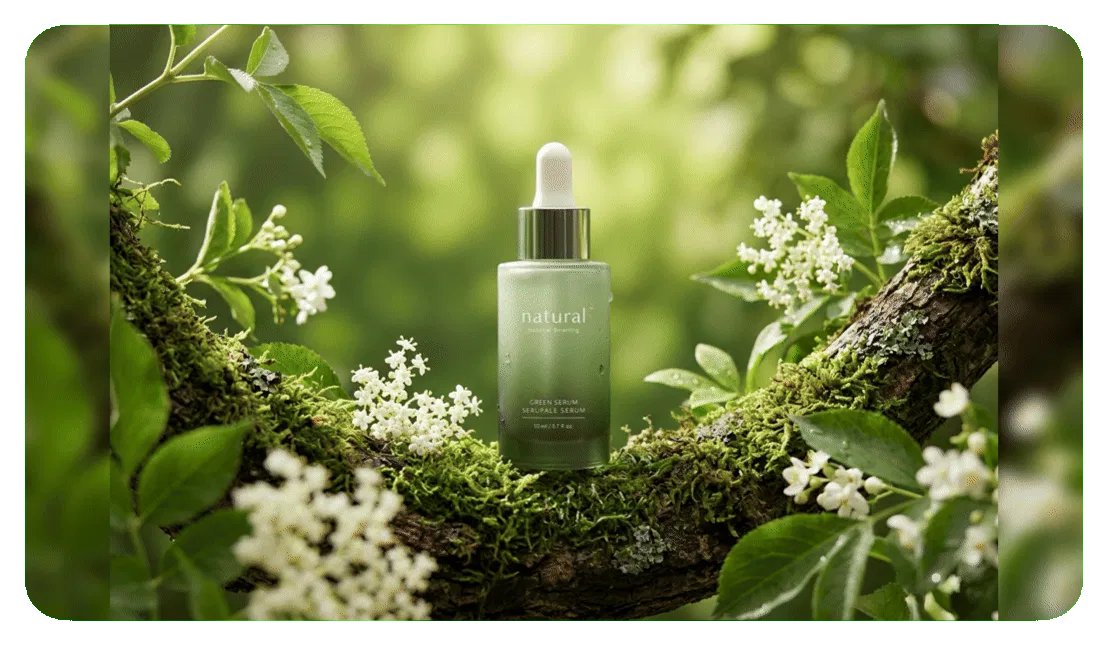
Matte black smart speaker on a concrete surface

Generate a Product Hero Image

Generate a main product picture for the essence with white background, soft gradient lighting, 3:2 aspect ratio. Show me the model options and the credit estimate before generating.
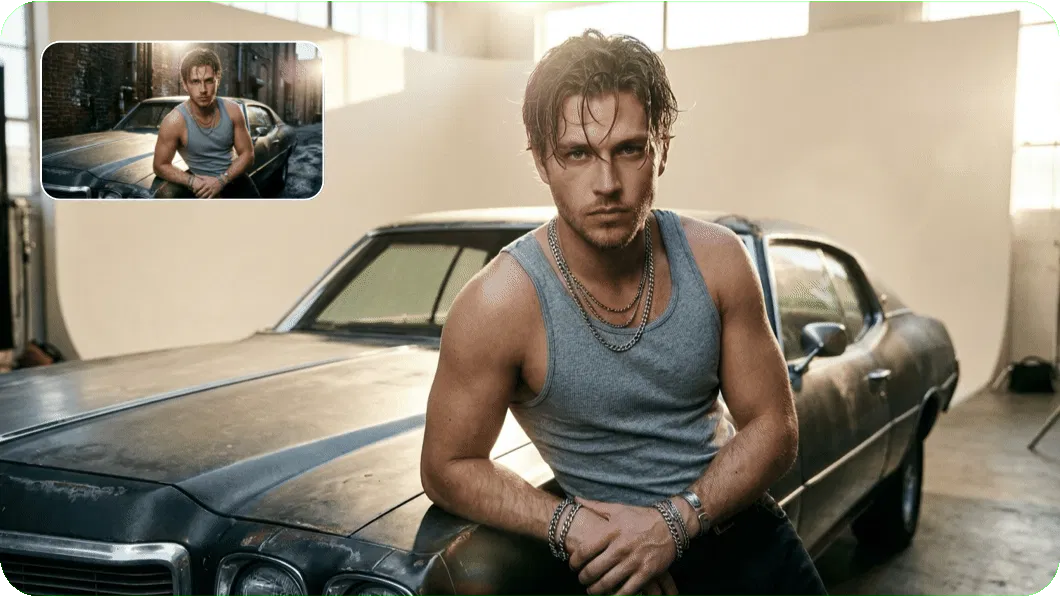
Subject kept on a sunlit studio cyclorama

Edit an Existing Image

Replace the background of the uploaded photo with a sunlit studio cyclorama and keep the subject exactly as it is. Keep the original pose and proportions.
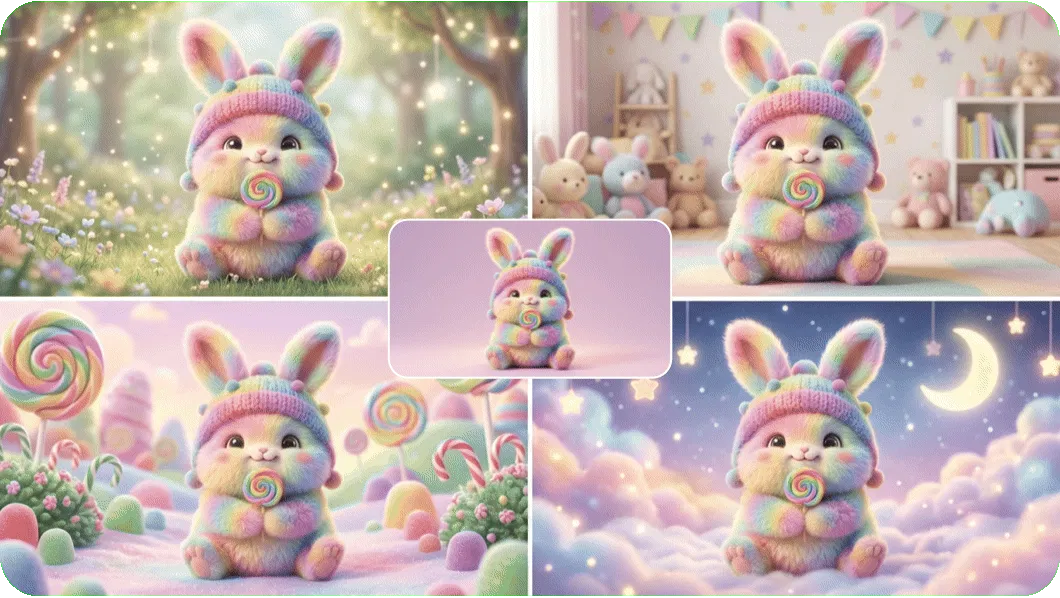
Product photo variants with different backdrop colors

Build a Consistent Set From One Reference

Use the uploaded product photo as the reference. Produce four variants with the same lighting and the same framing, changing only the backdrop color. Show me the estimate for the full set before you start.

Coffee brewing thumbnail with steam and warm tones

Design a Thumbnail

Create a 16:9 thumbnail for a video about coffee brewing. Bold title space on the right, steam in the background, warm tones. Give me the credit cost before generating.
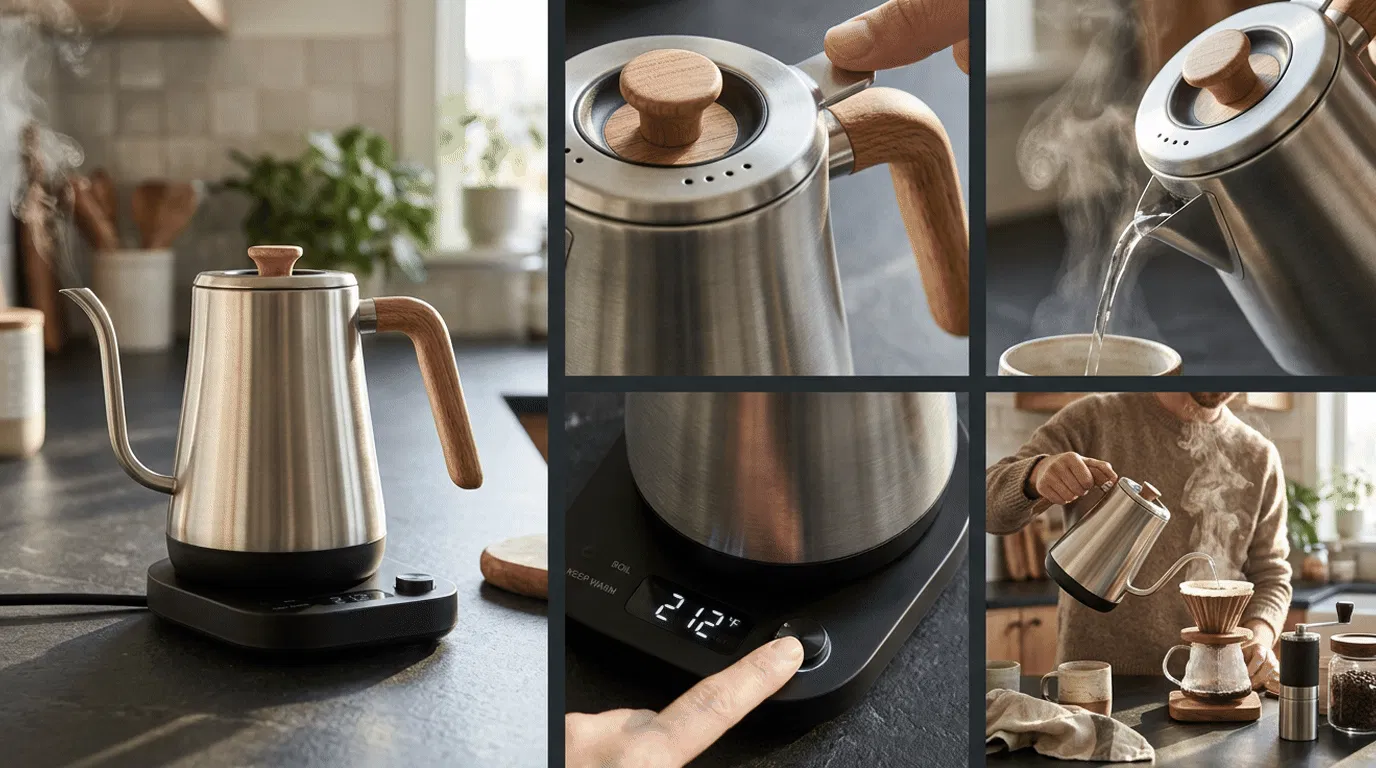
Stainless steel kettle campaign images

Plan a Full Campaign

I need a hero image, three detail shots, and one lifestyle frame for a stainless steel kettle launch. Keep the same visual language across all five. Estimate the whole batch first.
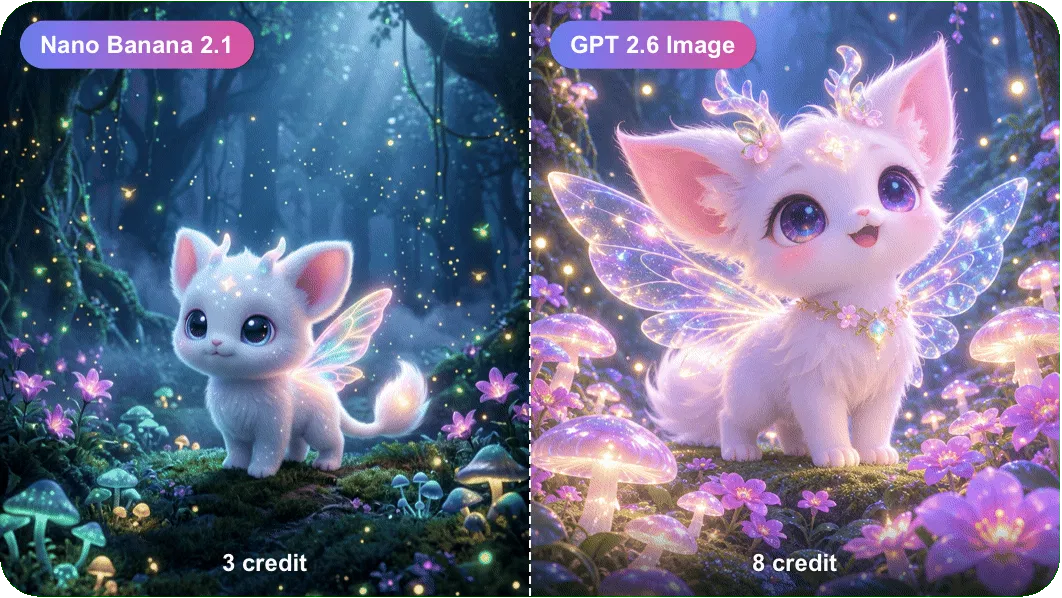
Two image model results shown side by side

Compare Models on the Same Prompt

Generate the same brief with two different image models and show me both results side by side, with the credit cost of each, so I can pick the right one.

Image MCP FAQ

1

Which AI apps can connect to an image MCP?

Any client that supports a remote MCP over Streamable HTTP. On Viddo AI that covers ChatGPT, Claude, Claude Code, Grok, Gemini, Gemini CLI, Cursor, VS Code, Codex, Cline, Zed, OpenCode, Microsoft Copilot Studio, and OpenClaw.

2

Do I need an API key to use image MCP?

No. With this server you authorize with your account through the browser, and the client handles the OAuth exchange automatically. Nothing gets written into your config file, so there is no provider key to rotate when a teammate joins or leaves.

3

How is a hosted image MCP different from a local one?

A local wrapper installs a package on your machine, passes your own provider API key as an environment variable, and runs the model on your own GPU or on that provider at your own rate. A hosted runs the models on the provider side, so there is no install, no GPU, and no key to rotate, and the agent can pick across the whole catalog instead of one provider.

4

How does billing work for AI image generation over MCP?

MCP jobs use your existing credits, the same balance as the web app. Your agent can read the balance and estimate a job before it creates anything, and generation only starts after you approve the model, the parameters, and the credit cost. A five-image set is estimated as one line before any of it runs.

5

Can my agent choose the image model for me?

Yes. The agent reads the live model list and the parameter rules, then recommends a compatible option, so you can describe 'a clean studio hero shot' instead of naming a model. You can still name one directly when you want a specific look. The full AI video model catalog shows what is available on the platform.

6

Can I use reference images and edit existing ones?

Yes, on the models that support them. Upload the reference through your client and the agent reads the model fields first to confirm what that particular model accepts, so a request never fails on a parameter that model does not have. It also means the agent can tell you which models in the catalog take a reference at all, before you spend anything discovering it.

7

Can the same connection also handle audio and video?

Yes. The stills live on the same server as the motion and the sound. If a campaign needs a hero image, a short clip, and a voiceover, one agent covers all three, and the music generation MCP server page covers the audio side in detail.

8

Can I use the output commercially?

Yes. Every plan includes commercial use and no watermarks, so a generated still is cleared for ads, packaging, and client delivery. If a creation fails, you can request a refund or get the used credits back, and the failure never becomes a silent second charge on your next invoice.

Pro Tips for Using Image MCP

Ask for the credit estimate before the first job of a session, then reuse that estimate for variations.
Name the model when you need a specific look, and leave it open when you want the agent to choose.
Keep one request per variation so a single failure does not lose the whole batch.
Poll a running task instead of resending the message, so the same request is not billed twice.
Hold one reference image when a set needs a consistent look.
Connect several clients freely, since each holds its own token while they share one credit balance.

Discover More

Get Started with the Image MCP on Viddo AI

Every stills model on the platform now answers to the assistant you already use, with no install and no key in your config file. Sign in once with your account, approve the credit estimate when your agent shows it, and start creating on your next message.
Get Started with the Image MCP on Viddo AI
viddo.ai

Viddo AI is an advanced all-in-one AI video and image generation platform that lets you quickly and easily create stunning videos and images from various inputs. These AI Model powered by Google, OpenAI, Grok AI, ByteDance, Alibaba, Kling, Runway, Vidu, Minimax, Elevenlabs, Midjourney,and so on.

© 2026 viddo.ai. All rights reserved.