llms

Music MCP for AI Music Generation in Any Agent By Viddo AI

Music MCP lets Claude, ChatGPT, Cursor, Gemini, Grok, and other AI agents compose music, record voiceovers, and place sound effects through the Model Context Protocol. Runs on your own credits with no API key to manage.
1

Copy the Viddo MCP URL

Copy the Viddo MCP server URL. You will need it in the next step.

https://mcp.viddo.ai/mcp

2

Add Viddo to Grok

Open the page below and click New Connector, then Custom. Name it Viddo, paste the URL, and click Add Connector.

3

Connect and Start Creating

Sign in with your Viddo account and approve the connection. Then ask Grok to generate and edit images, videos, and audio.

Verify the connection

Please call viddo_list_models and list the models available on my account.

Full Grok setup guide →

What is Music MCP

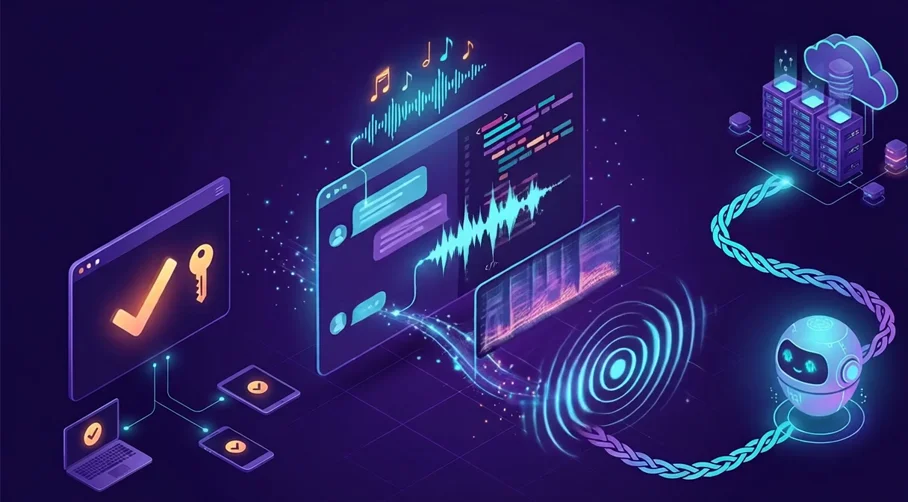
A music MCP server is a remote Model Context Protocol server that exposes AI music generation, text to speech, voice cloning, and sound effects as tools that an AI agent can call from a chat window or a code editor. Your agent reads the live model list, estimates the credit cost, and creates the job only after you approve it.

Instead of copying API keys into a config file, you authorize once in the browser with your Viddo AI account. Every compatible client on that machine stays signed in, and the finished track comes back as a link inside the conversation where you asked for it.

Your agent sends a request, the server runs the model, and the result returns as a link. The practical difference shows up in a video workflow. A background bed that matches the shot, a voiceover that lands on the intended line, and a sound effect that hits the cut can all be requested in the same thread that scoped the video, instead of being sourced from three separate dashboards.
AI Image to Video Ads

Key Features of the Music MCP

Score a Video Without Leaving the Conversation
The agent takes the brief you already wrote for the video and turns the emotional beats into a track. Ask for a calm piano bed under an opening and a slow build in the last five seconds, and the result is cut to that shape. Nothing has to be re-explained in a separate audio tool, because the context is already in the thread.
Score a Video Without Leaving the Conversation
One Agent Handles Bed, Voice, and Effects
The same connection covers the three audio layers a video usually needs. A background bed under the scene, a spoken voiceover with the tone you asked for, and a single transition effect on the cut are three requests to one agent. That matters when the brief already says what the video needs, because the audio follows the same brief instead of starting a new conversation.
One Agent Handles Bed, Voice, and Effects
Voice Cloning Keeps a Series Consistent
A cloned voice profile carries the same delivery across every episode of a series. The agent reuses the profile you approved, so the second onboarding video sounds like the first one without a re-recording. For a spoken series, that consistency is usually worth more than a new voice every time.
Voice Cloning Keeps a Series Consistent
The Agent Estimates Cost and Waits for Your Approval
Audio jobs can run long, so the agent reads your remaining credits, estimates the cost of the exact model and parameters you described, and stops before anything is created. Nothing runs and nothing is charged until you confirm the model, the parameters, and the number. Ask for that behavior once and the agent keeps it for the rest of the session.
The Agent Estimates Cost and Waits for Your Approval
Failed Jobs Do Not Charge You Twice
When a job fails, the agent reports the failure and the request ID instead of quietly resubmitting with different parameters. A retry that reuses the same request reuses the same job, so a timeout or a re-sent message does not turn into a second charge. In a batch of beds and voiceovers, each task reports its own status, so you know exactly what completed.
Failed Jobs Do Not Charge You Twice
Long Jobs Run in the Background
Audio generation takes time, so the job runs in the background and the agent polls the status until the asset is finished. You can submit several tasks in one request, get a separate status for each, and keep working while they render. Finished files arrive as links the agent can reference, download, or drop into the project you are already in.
Long Jobs Run in the Background

How to Use the Music MCP on Viddo AI

  • Step1

    Copy the Viddo MCP Server URL

    Audio generation runs on the same remote endpoint as every other Viddo AI MCP tool, so this is the same one-address setup you use for anything else. Copy it and paste it into the MCP settings of the client you write in.

    Copy the Viddo MCP URL:https: //mcp.viddo.ai/mcp
  • Step2

    Add the Server to Your Client

    Open the MCP settings in your client and create a new server entry. Paste the URL above, choose Streamable HTTP as the transport, and leave authentication on OAuth. Most clients register themselves automatically, so there is no client ID or client secret to fill in. If your client lists MCP servers under a different label, that is the same panel.
  • Step3

    Sign In and Approve the Permissions

    Your agent opens the browser to the sign-in page. Log in with your account and approve the requested permissions. The browser returns you to your client, and the audio tools appear under the Viddo entry alongside the rest of the catalog.
  • Step4

    Verify the Connection and Send Your First Request

    Ask your agent to confirm the link before you generate anything. Confirming first means you find a broken approval before you wait on a three-minute track.

    Connect and Start Creating:Please call viddo_list_models and list the models available on my account.

    If the list comes back, the connection works. Then ask for a track, approve the credit estimate, and wait for the result to land in the conversation. If the tool list stays empty, the browser approval did not complete, and re-adding the server usually clears it.

Sample Agent Prompts for Music MCP

These go straight into any connected client. They read like a brief to a producer rather than a prompt to a tool.
Sunlit bedroom with plush toys on the bed

Score a Video With a Background Bed

Write a 30-second calm instrumental bed for an opening sequence: soft piano, no drums, no vocals, gentle build in the last five seconds. Give me two tempo options and the credit cost for each before you generate.

Close-up of a matte black wireless earbud case

Record a Product Voiceover

Write and generate a 30-second warm product voiceover for a wireless earbud launch. Conversational, confident, no jargon. Then check the audio duration before exporting.

Warm ambient background for a product page

Build a Longer Music Bed

Create a 60-second looping ambient track for a product page background: warm pads, no percussion, no vocals, and no obvious ending so it can repeat.

A soft transition between two scenes

Place a Single Sound Effect

Generate a soft transition whoosh for a scene change at around four seconds, short and airy, and save it so I can drop it into the edit.
Onboarding narration recorded with a saved voice

Clone a Voice for a Series

Use my saved voice profile to generate a 45-second onboarding narration for a new feature. Same delivery as my last take, same pace, and tell me the cost before you start.

A spoken script timed to a 15-second slot

Check Duration Before Exporting

Generate the spoken script first, report its duration, and only produce the final audio if it fits inside the 15-second slot I gave you.

Music MCP FAQ

1

Which AI apps can connect to music MCP?

Any client that supports a remote MCP server over Streamable HTTP. On Viddo AI that covers ChatGPT, Claude, Claude Code, Grok, Gemini, Gemini CLI, Cursor, VS Code, Codex, Cline, Zed, OpenCode, Microsoft Copilot Studio, and OpenClaw.

2

Do I need an API key to use music MCP?

No. With this server you authorize with your account through the browser, and the client handles the OAuth exchange automatically. Nothing gets written into your config file, so there is no key to rotate when a teammate joins or leaves.

3

Can MCP server generate music, voice, and sound effects?

Yes. AI music generation, text to speech, voice cloning, and sound effects are all available over the same connection, so one agent can score a scene, record the narration, and place a transition effect without switching tools. The AI music generator page maps the full catalog.

4

How does billing work for AI music generation over MCP?

MCP jobs use your existing credits, the same balance as the web app. Your agent can read the balance and estimate a job before it creates anything, and generation only starts after you approve the model, the parameters, and the credit cost. Audio credits follow the same rule as video, so one balance covers the whole project.

5

Can my agent choose the music model for me?

Yes. The agent reads the live model list and the parameter rules, then recommends a compatible option, so you can describe 'a calm bed for an opening' instead of naming a model. You can still name one directly when you want a specific sound. The full AI video model catalog shows what is available on the platform.

6

How long does a generated track take to arrive?

Audio generation runs as a background job, so your agent polls the task status until the file is finished. On clients with rich responses the generation card updates in place, and on text-only clients the agent returns the download links once the job completes.

7

Can the same connection also handle images and video?

Yes. The audio lives on the same server as the stills and the motion. If a launch needs a soundtrack, a thumbnail, and a cut, one agent covers all three, and the image generation MCP server page covers the stills in detail.

8

Can I use the audio commercially?

Yes. Every plan includes commercial use and no watermarks, so a track or a voiceover is cleared for release and for client work. If a creation fails, you can request a refund or get the used credits back, and the failure never becomes a silent second charge on your next invoice.

Pro Tips for Using Music MCP

Ask for the credit estimate before the first job of a session, then reuse that estimate for variations.
Name the model when you need a specific sound, and leave it open when you want the agent to choose.
Keep one request per variation so a single failure does not lose the whole batch.
Poll a running task instead of resending the message, so the same request is not billed twice.
Request the script or the duration first, then render the final audio.
Connect several clients freely, since each holds its own token while they share one credit balance.

Discover More

Get Started with the Music MCP on Viddo AI

Your assistant can now score a scene, record the narration, and place the effect without you leaving the thread. Sign in once with your account, approve the credit estimate when your agent shows it, and start creating on your next message.
Get Started with the Music MCP on Viddo AI
viddo.ai

Viddo AI is an advanced all-in-one AI video and image generation platform that lets you quickly and easily create stunning videos and images from various inputs. These AI Model powered by Google, OpenAI, Grok AI, ByteDance, Alibaba, Kling, Runway, Vidu, Minimax, Elevenlabs, Midjourney,and so on.

© 2026 viddo.ai. All rights reserved.