
Seedance 2.0: As low as $0.345 per video
Veo3.1 Lite: As low as $0.0575 per video


Waiting for your creations!
Create captivating videos with ByteDance's Seedance 2.0 technology. Are you still troubled by the high threshold of video creation? Want to make creative short films but lack professional editing skills? Aspire to replicate movie-level cinematography but don't know where to start? Struggle with disjointed footage when extending video clips? As a newly launched multimodal AI video creation model, Seedance 2.0 completely breaks the boundaries of traditional video creation. With its four-dimensional input mode of images, videos, audio and text, you can easily create movie-level video works without any professional skills.Designed entirely from the user's perspective, our product simplifies complex video creation into a straightforward process of uploading materials + writing prompts, truly delivering a what you imagine is what you get creative experience.


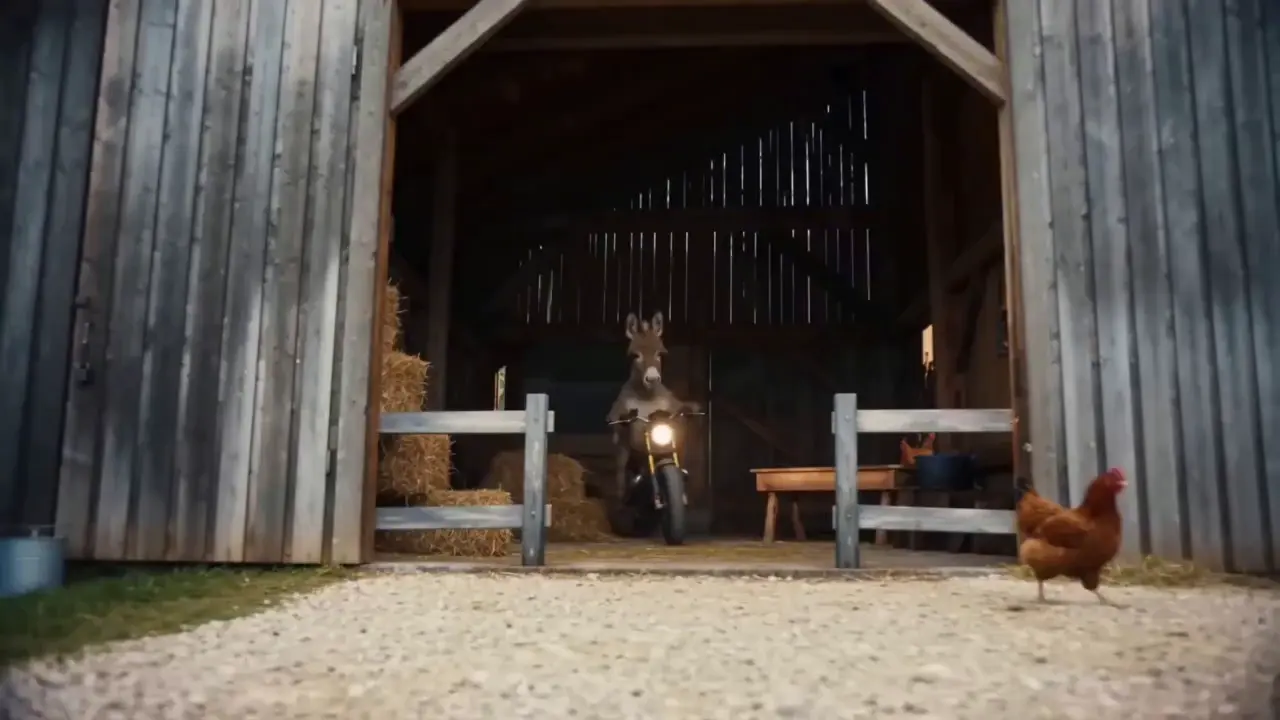
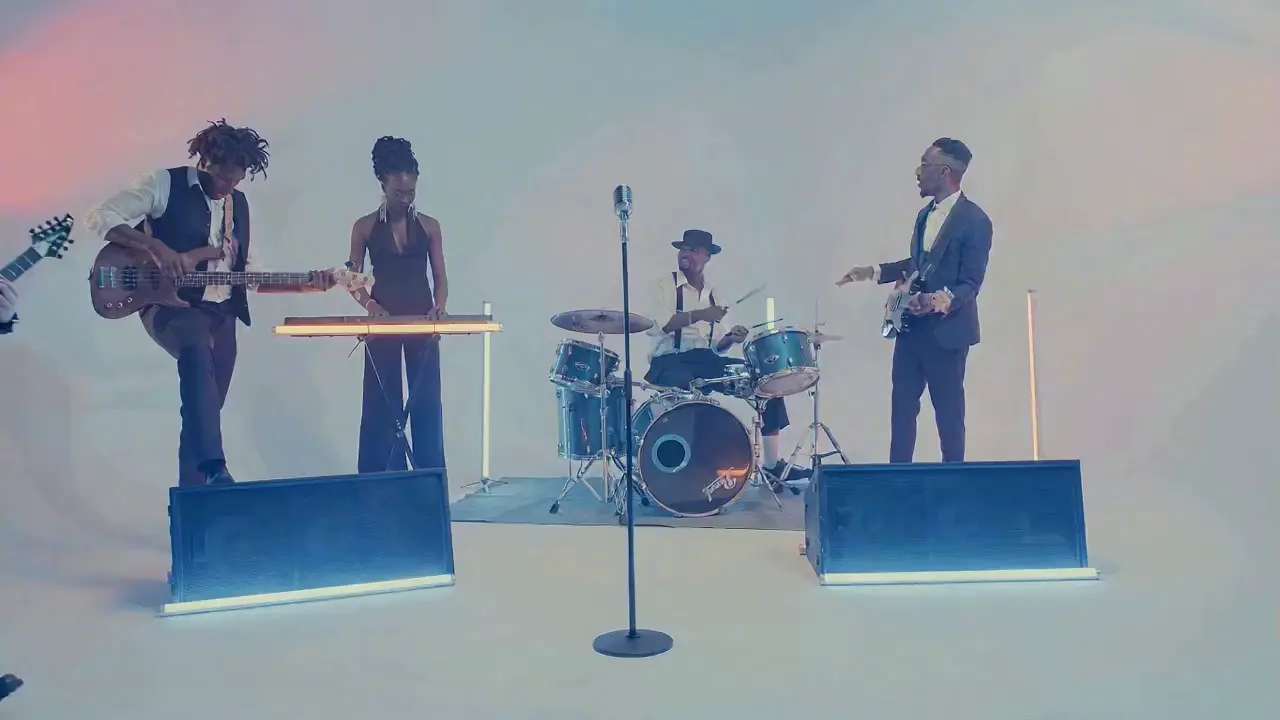
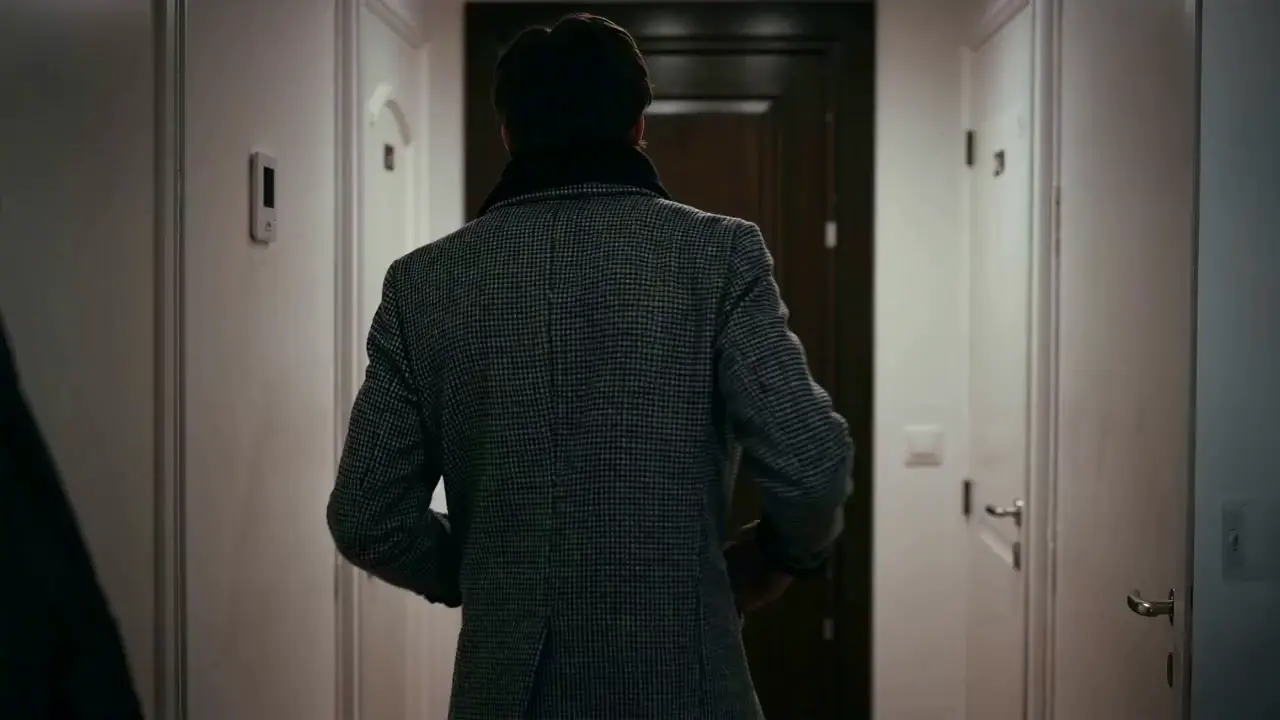
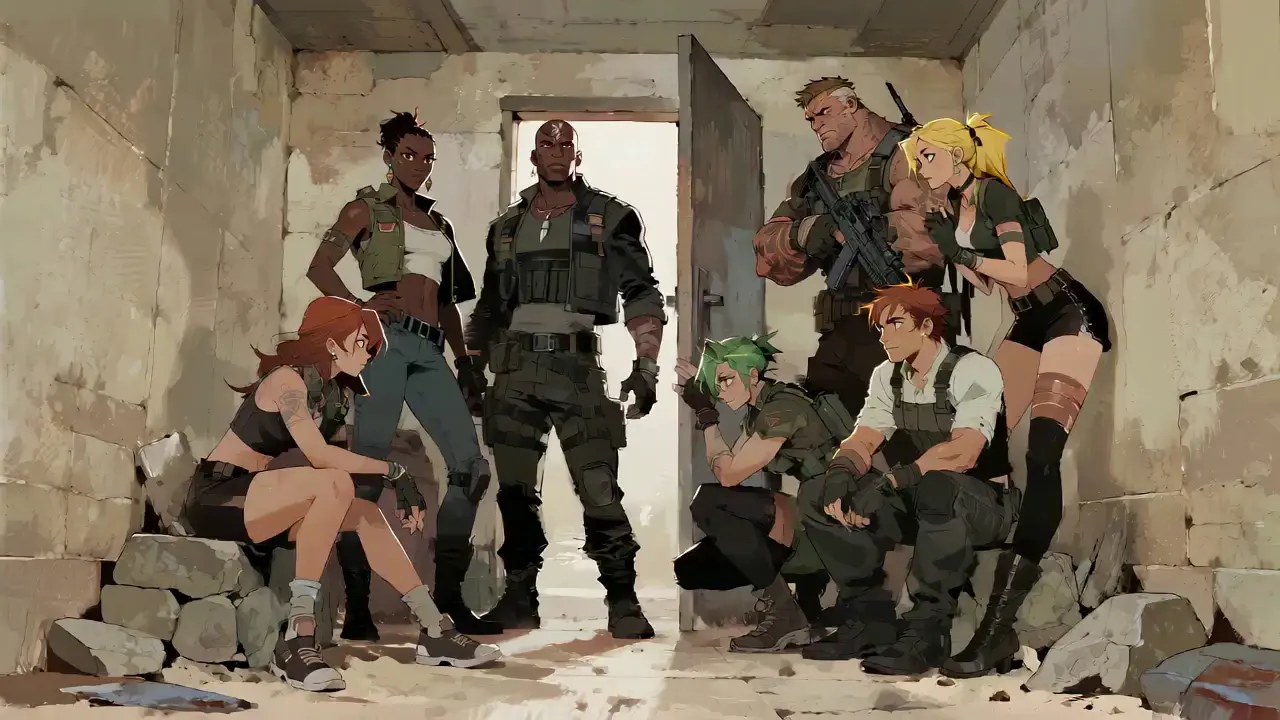
No complex operations are required to use Seedance 2.0. Even beginners with zero experience can complete creation in 4 simple steps—all operations are web-based, no software download needed. The detailed steps are as follows:
After logging into your account, find the Seedance 2.0 entry in the navigation bar and click to enter the operation page, which is divided into three core modules: Material Upload Area, Prompt Input Area and Parameter Setting Area. First select the suitable model, then prepare the materials needed for video generation.
Upload images, videos and audio materials according to your needs, and pay attention to the material quantity limits: up to 9 images, 3 videos (total duration ≤15s), 3 audio files (MP3 format / total duration ≤15s) plus natural language text, with a maximum total of 12 files for mixed input.Prioritize uploading materials that have the greatest impact on the frame and rhythm, such as core reference videos or style-defining images.
Describe your creative needs in natural language in the text input box. The core tip is to tag material objects with @ and clearly specify instructions such as reference/edit/use as first frame/use as last frame to avoid material confusion.
✅ Excellent Prompt Example: @Image 1 as the first frame; reference the fight movements in @Video 1, the camera follows the character's movement, with an ancient-style courtyard as the background.
❌ Common Mistake: Failing to tag materials, only writing: Reference fight movements, ancient style courtyard.
Select the desired video duration (4-15s optional) according to your needs, and click Generate Video. Seedance 2.0 will complete generation in 3-4 minutes. You can preview the video online directly after generation; if unsatisfied, revise the prompt based on the original materials and regenerate with one click.
We’ve summarized 3 core tips that even beginners can master quickly
Clear Material Commands
Add Detailed Descriptions
Control Sentence Length
Advanced Tips
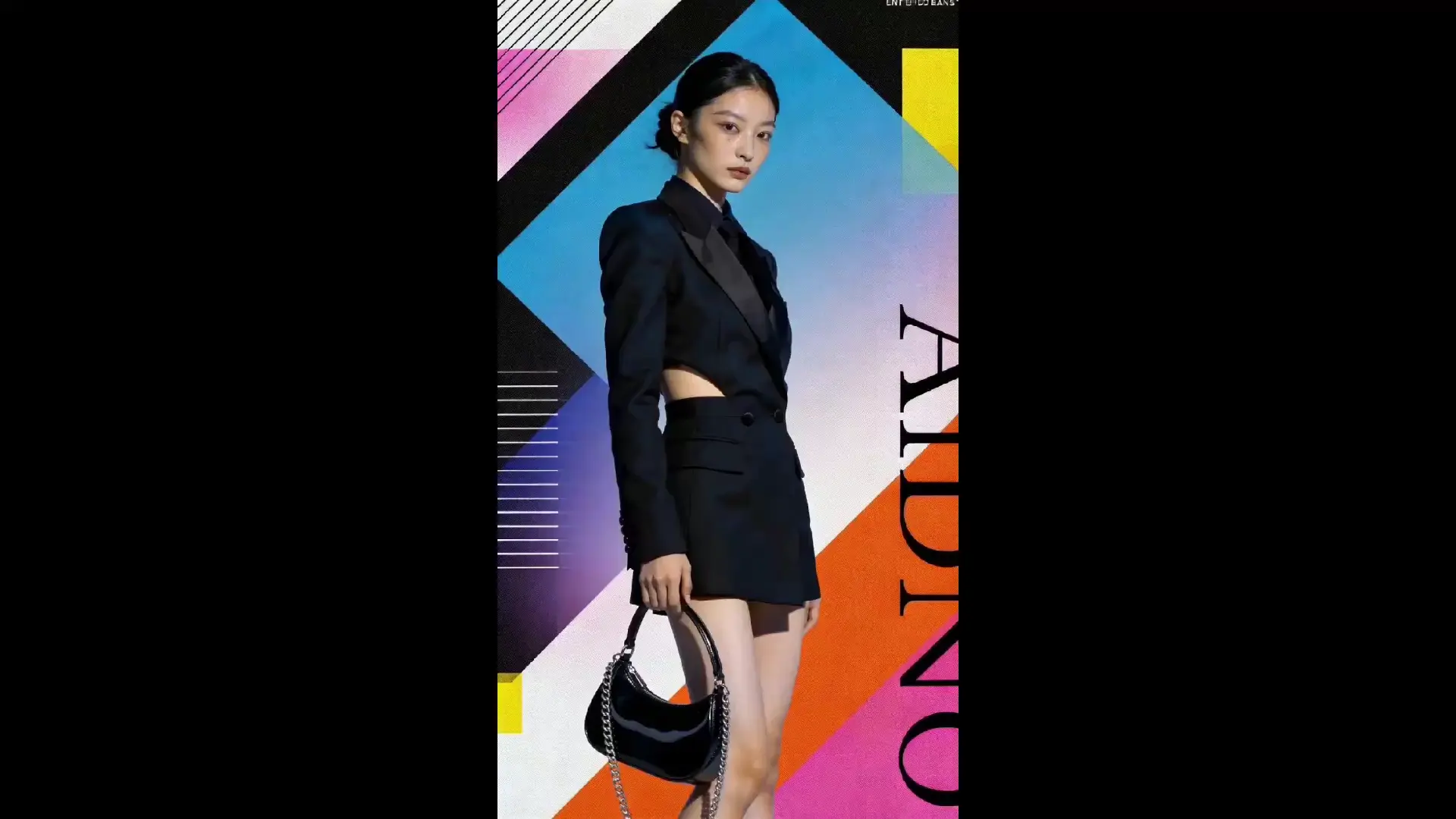
See What They Created with Seedance 2.0


Liam, Social Media Creator

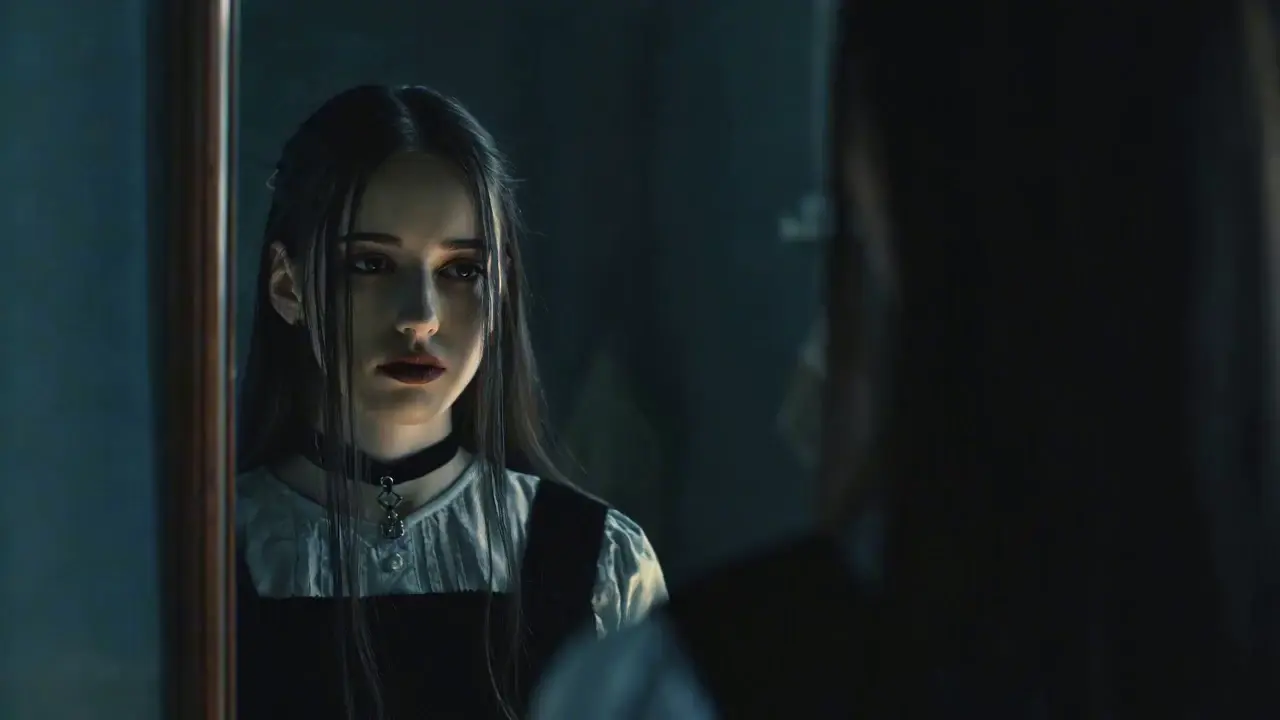
Olivia, E-commerce Operator

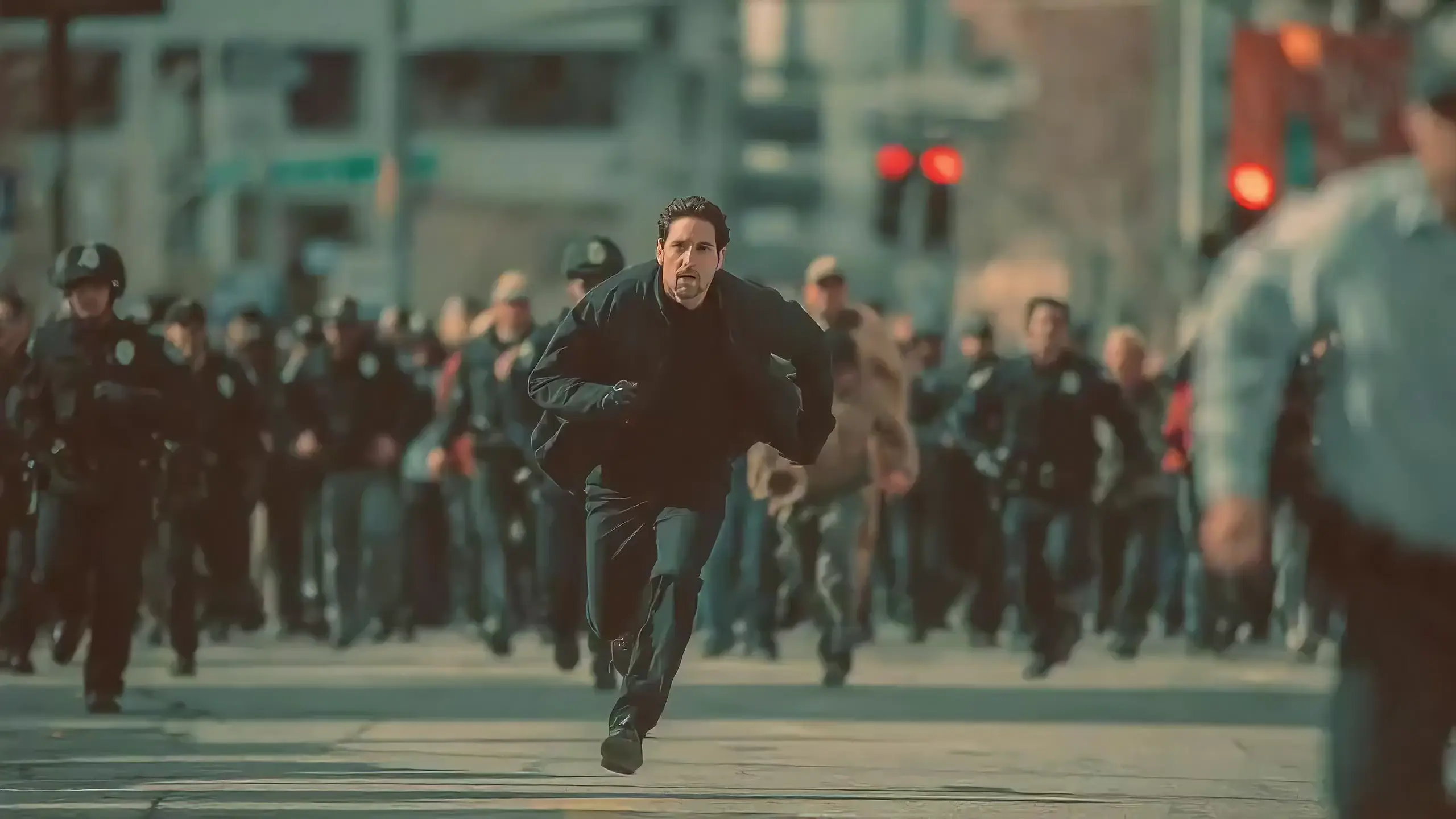
Ethan, Creative Creator
Yes, video downloads are free of charge. All generated videos are in high-definition MP4 format, which can be directly published on Douyin, Xiaohongshu, YouTube, and other platforms without additional format conversion.
The total duration of reference videos must be ≤15s. If your material is longer than 15s, it is recommended to edit it into a 15s core clip before uploading for optimal generation results.
Prioritize core reference materials. For example, when replicating cinematography, you can allocate 1 reference video + 3 images + 1 audio file, and use the remaining quota for supplementary materials. Avoid uploading too many materials to prevent model recognition deviations.
If you use your own original materials (images/videos/audio) for generation, you hold the complete copyright of the generated video and can use it directly for commercial promotion, social media publishing and other scenarios. If you use third-party materials, you must obtain copyright authorization to avoid infringement risks.
Material confusion is mostly caused by failing to clearly tag @material objects in the prompt. The solution is to accurately label the purpose of each material in the prompt, e.g., @Image 1 as the character image, @Image 2 as the scene background, and avoid vague descriptions.
Viddo AI is an advanced all-in-one AI video and image generation platform that lets you quickly and easily create stunning videos and images from various inputs. These AI Model powered by Google, OpenAI, Grok AI, ByteDance, Alibaba, Kling, Runway, Vidu, Minimax, Elevenlabs, Midjourney,and so on.