llms

Image to Image AI: Restyle, Reimagine & Remix Your Images

Viddo AI's Image to Image AI turns any photo into a fresh visual without re-shooting. Upload an image, pick from 20+ flagship Image to Image models — GPT Image, Seedream, Nano Banana, Midjourney — and restyle, reimagine, or remix the output in seconds, all in one canvas.

Generate With AI

If you're not satisfied, you can generate again or enter prompt for your own.

Select the aspect ratio for your image

1:1

3:2

2:3

Medium
High
Required credits: 0

Waiting for your creations!

Image-to-Image AI Generator On Viddo AI

Use our Image-to-Image tool to effortlessly transform your photos into stunning new visuals, ideal for creative projects, ad campaigns and social media content.

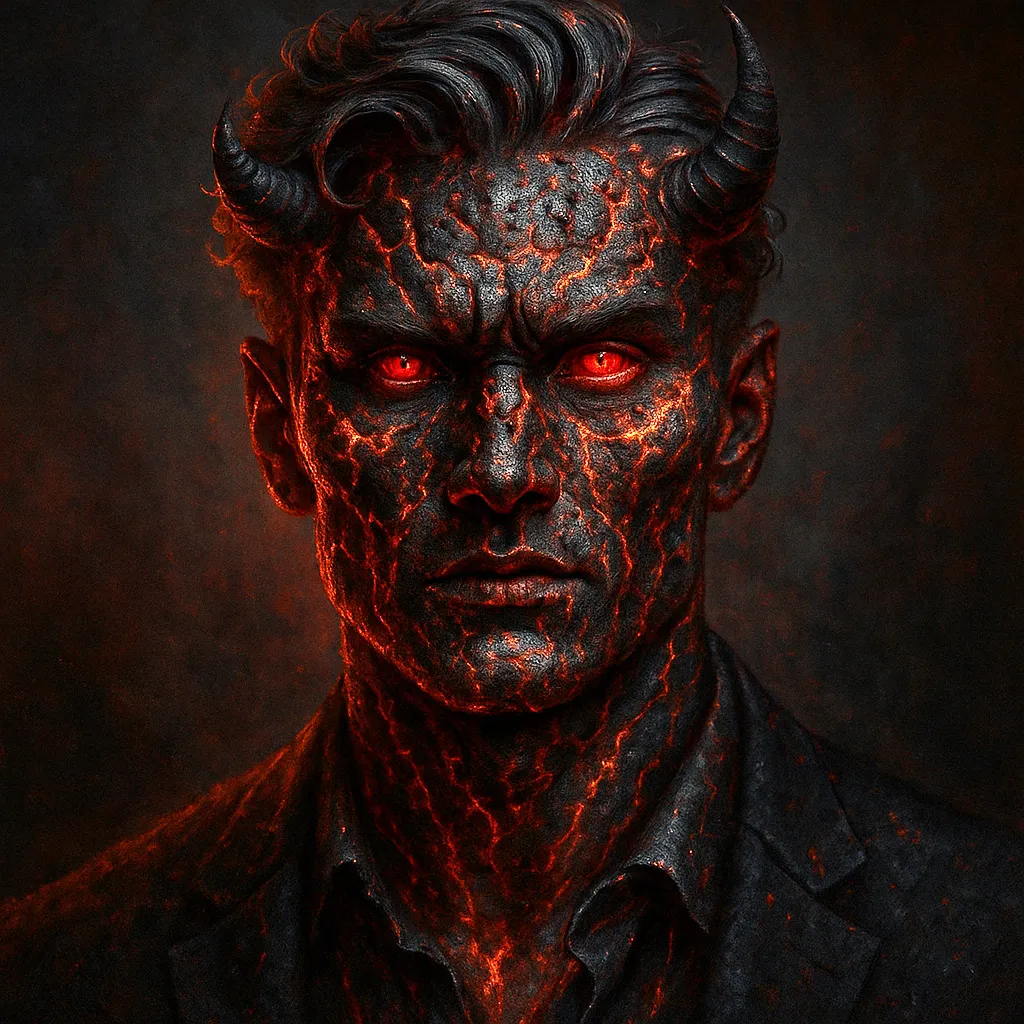
  • Silver-haired man in suit: source image for Viddo AI image to image transformation
    Demonic man with glowing red skin: AI reimagined result from Viddo AI image to image
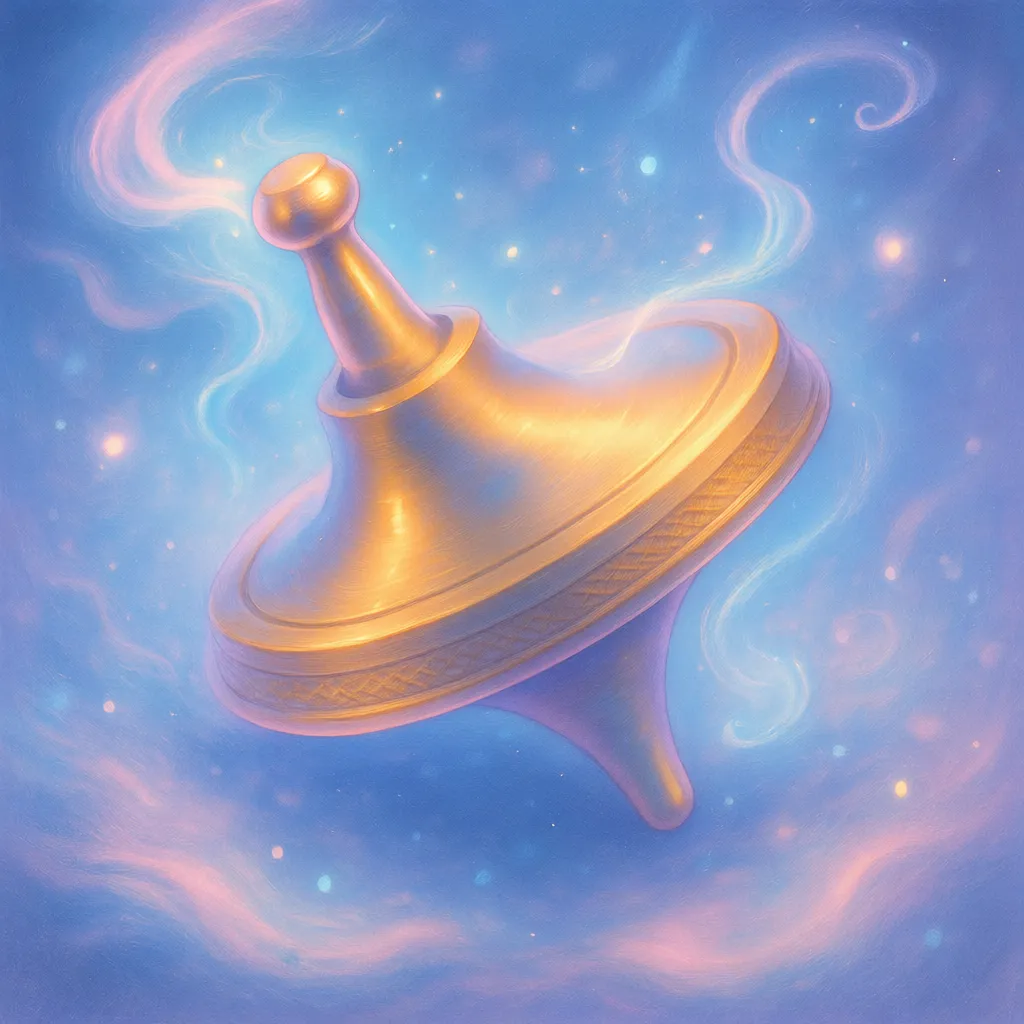
  • Luxury mechanical watch: base image for Viddo AI image to image style transfer
    Cyberpunk sci-fi watch: futuristic redesign via Viddo AI image to image
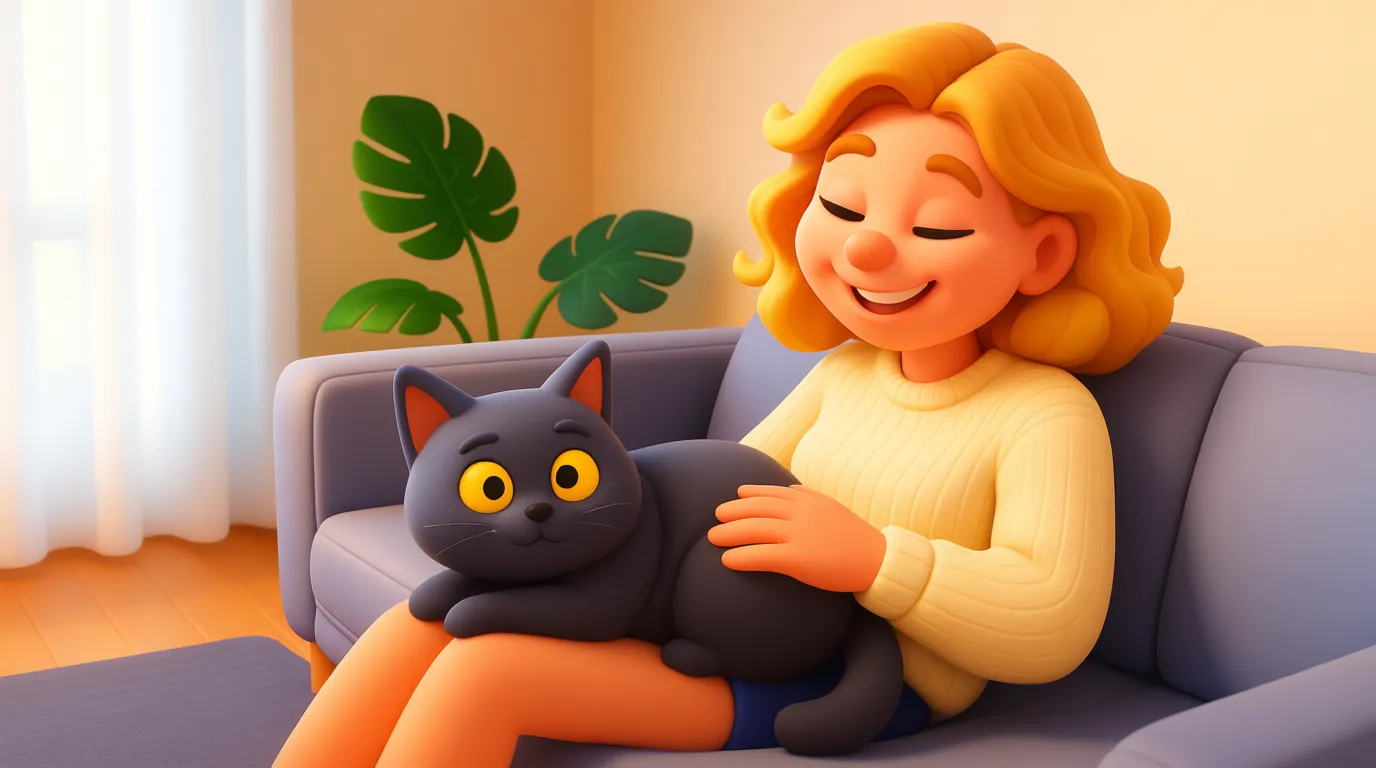
  • Woman with grey cat on couch: source photo for Viddo AI image to image
    Cartoonized woman with cat: playful illustration from Viddo AI image to image
  • Woman with grey cat on couch: source photo for Viddo AI image to image
    Cartoonized woman with cat: playful illustration from Viddo AI image to image

Image Canvas: Edit Where You Marked on Viddo AI

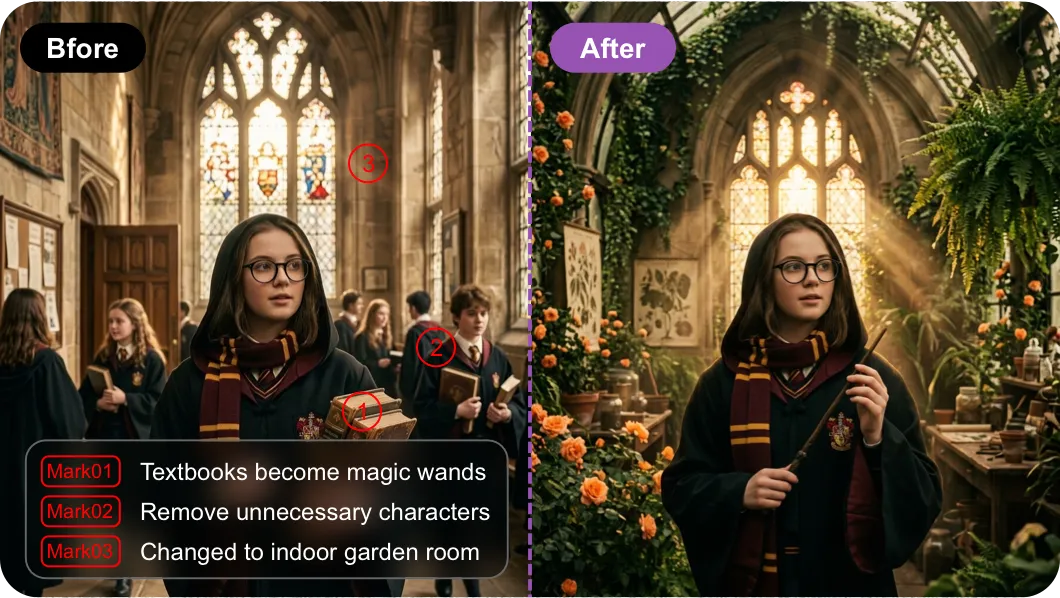
While the Image to Image generator above restyles the whole frame on a text prompt, Viddo AI's Image Canvas is the online-edit companion for the cases where one region needs to change.
image

Mark Mode — Click to Edit a Region

Pick a colour from the Mark palette (red, green, blue, purple, white), paint the area you want to change, and the paint becomes a named tag — @Mark01, @Mark02, and so on. Reference the tag in your prompt and the model edits only that region; everything outside stays pixel-identical.
image

Doodle Mode — Sketch a New Shape on Top

Doodle mode is the inverse of Mark — sketch the new shape directly on top of the image and the model fills it in with photoreal detail. Mark + Doodle combine in the same edit: mark the region, doodle what is coming next, generate.

Key Features of Image to Image on Viddo AI

20+ Image to Image Models in One Upload Zone
The picker holds 14 models from five families — OpenAI, Google, ByteDance, xAI, and Midjourney — and every one of them runs true image-to-image rather than text-to-image with a filter on top. Each brings its own style fingerprint and its own prompt sensitivity, so the right choice depends on the look you need.

Every model sits behind the same upload zone and the same prompt editor, so the input format never changes as you switch. Dedicated pages go deeper on each model's prompt style: Seedream 4.5, Nano Banana Pro, and Midjourney.
20+ Image to Image Models in One Upload Zone
Style Transfer with Text Prompts
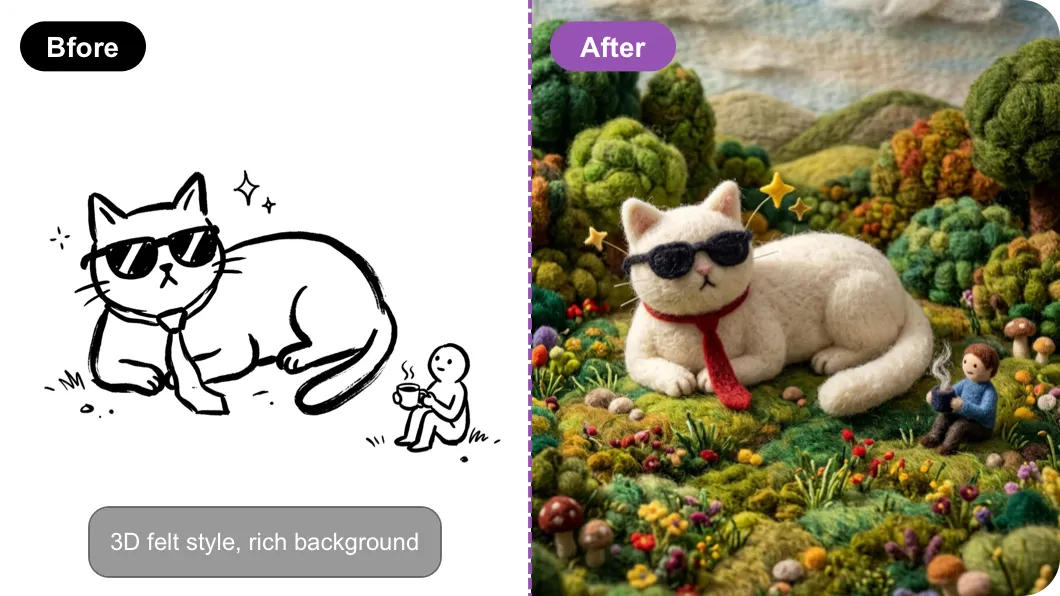
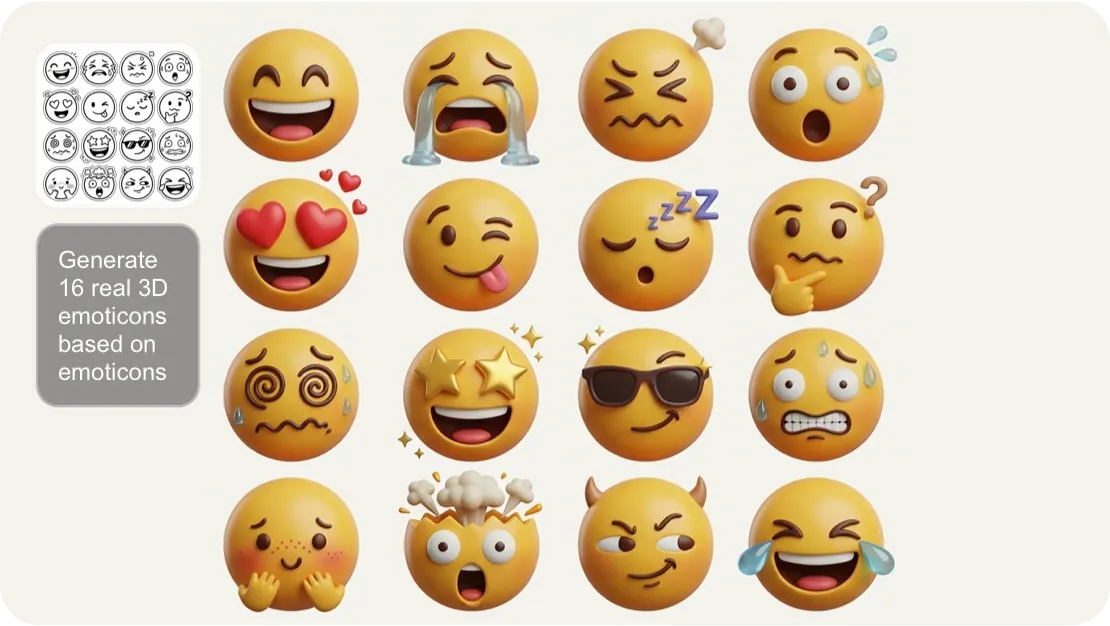
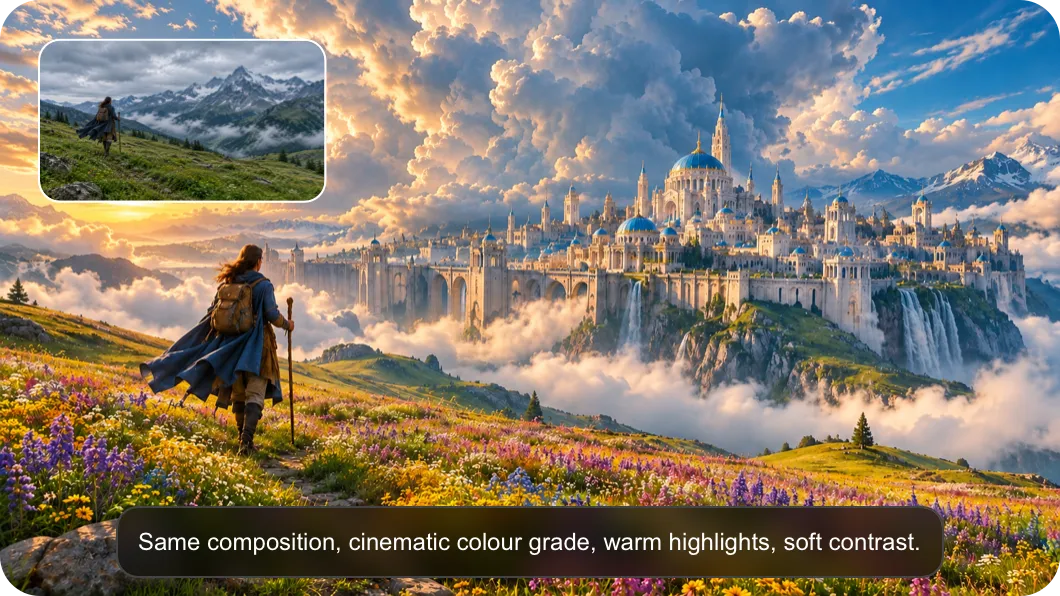
The Image to Image AI generator treats style transfer as a first-class output. Pick a model that matches the target aesthetic — anime, cinematic, claymation, watercolour, photoreal — and the model re-renders the photo in that style while preserving the original composition. The source photo drives the structure, the prompt drives the look, and the model keeps the cut coherent from corner to corner. This is the workflow behind anime re-skin, music-video colour grading, brand KV consistency, and short-form ad repurposing — write a short prompt like 'same composition, cinematic colour grade' and the model does the rest.
Style Transfer with Text Prompts
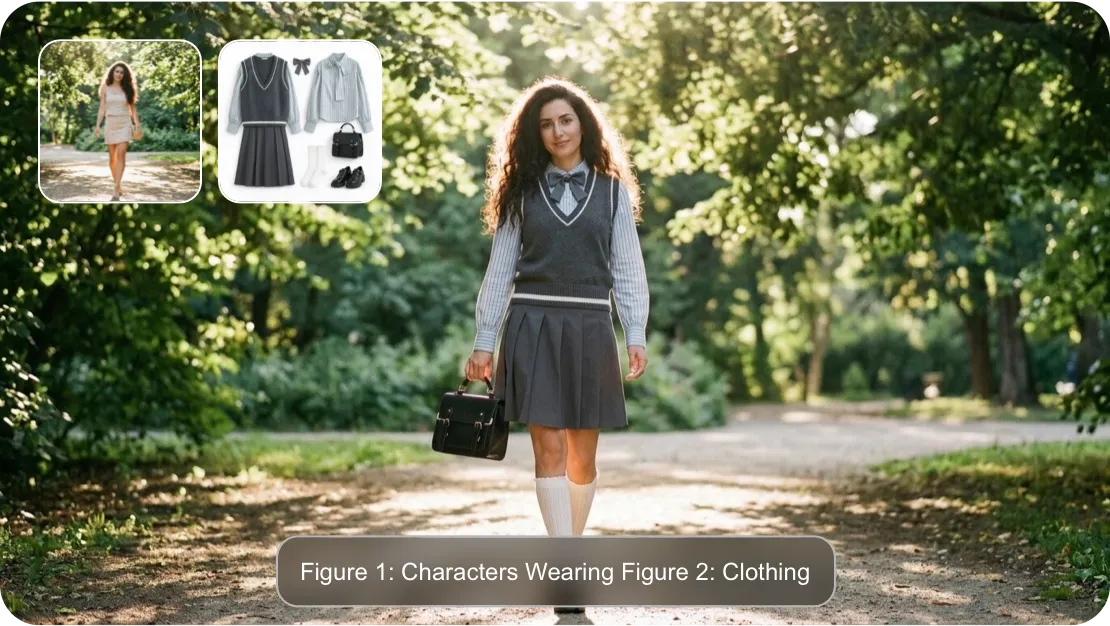
Up to 16 Reference Images in One Brief
The Image to Image AI generator on Viddo AI accepts up to 16 reference images in a single brief. Drop the source image into the upload zone, add reference photos that match the target style, mood, or character, and the model indexes each reference as it works. The upload counter in the canvas reads `image(0/16)` so you always know how many references the brief can still absorb. Multi-reference is the workflow behind brand KV series, character turnaround sheets, multi-format campaign visuals, and any brief that needs stable identity across several outputs.
Up to 16 Reference Images in One Brief
Aspect Ratio, Resolution, and Version Controls
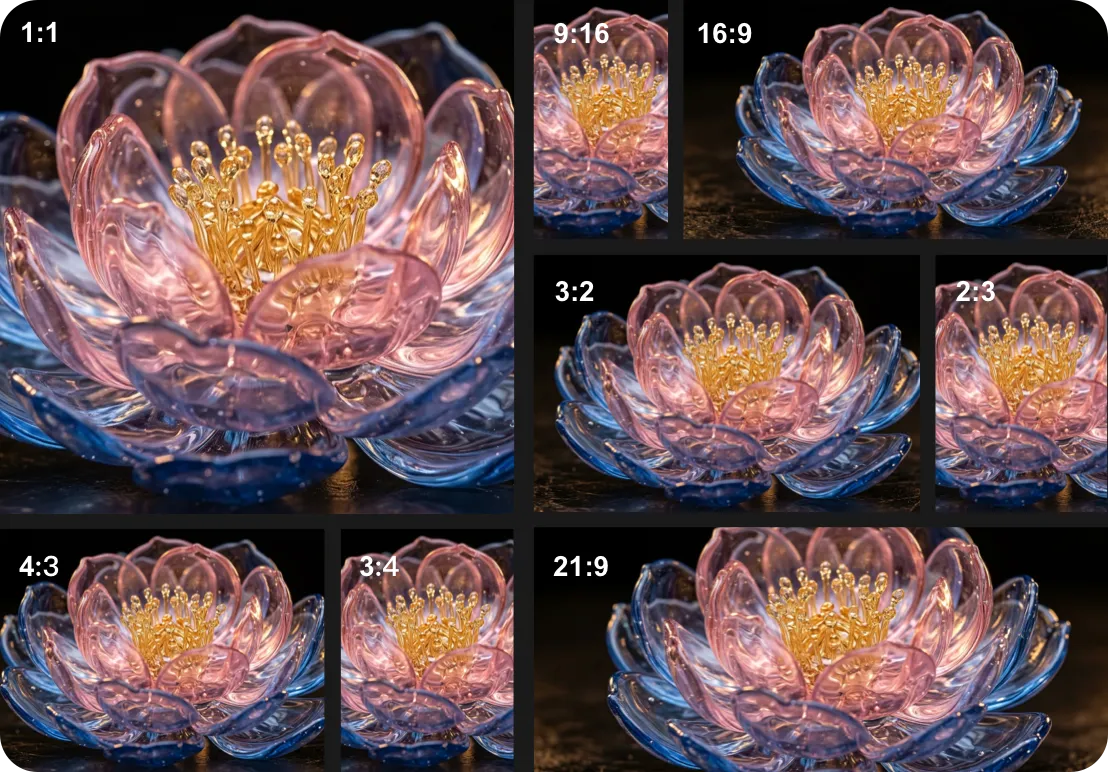
The Image to Image AI generator exposes 9 aspect ratios (adaptive, 1:1, 16:9, 9:16, 4:3, 3:4, 3:2, 2:3, 21:9), three resolution tiers (1K, 2K, 4K), and two model versions on supported models (Flare and Sunburst) so the output fits the placement. Pick 1:1 for a social avatar, 9:16 for a Stories cut, 16:9 for a hero banner, or adaptive to let the model pick the ratio that matches the source. Pick 1K for fast iteration, 4K for a final export, and switch between Flare and Sunburst to compare two generations of the same model against the same prompt.
Aspect Ratio, Resolution, and Version Controls
Seed Lock for Visual Coherence Across a Series
The Image to Image AI generator on Viddo AI exposes a Seed Lock control: pick a seed once, and every run with the same prompt and seed returns the same style fingerprint, character appearance, and palette baseline. As the on-screen tooltip explains, 'by using the same seed value, you can keep the image's style and character appearance as consistent as possible — perfect for creating a series or maintaining visual coherence.' Seed Lock is the workflow behind brand KV series, episodic character art, multi-format campaign cuts, and any brief that needs stable identity across several images.
Seed Lock for Visual Coherence Across a Series
Translate Prompt for Multilingual Briefs
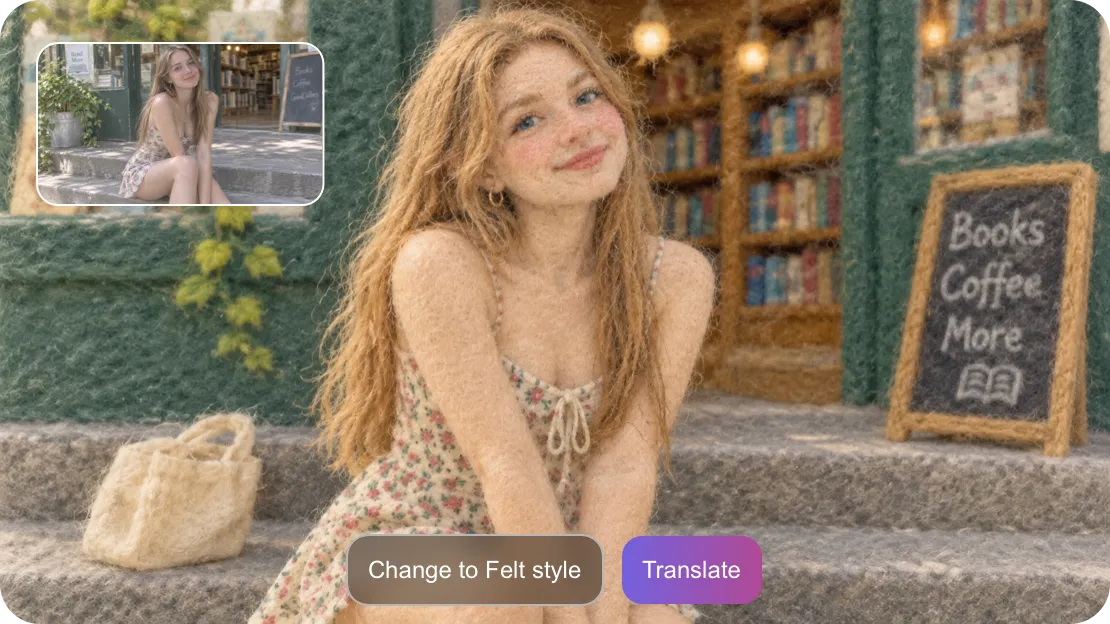
The Image to Image AI generator on Viddo AI exposes a one-click Translate button beside the prompt editor: write the brief in any of the 16 supported languages, and Viddo AI rewrites it into the model's preferred prompt style before it reaches the Image to Image AI model. Translate is the workflow behind multilingual campaign production, cross-region e-commerce listings, and any team that briefs in one language and ships to another. Viddo AI keeps the Translate button next to every model in the dropdown, so the same one-click translation flows across the entire 11-model lineup.
Translate Prompt for Multilingual Briefs

Image to Image Prompt Examples on Viddo AI

Every prompt below follows a 5-part structure that Viddo AI's Image to Image models recognise reliably:

StyleSubjectReferenceAspectMood

Use a 3-part brief (Style + Subject + Mood, 5-9 words) when the source photo already supplies the Reference and Aspect.

Use a 5-part brief (10-15 words) when you need to pin the face, product, or crop explicitly.

Cinematic colour grade of the same composition with warm highlights and soft contrast

Prompt 1 — Cinematic Colour Grade

Structure

Style: cinematic colour grade
Subject: same composition
Reference: (none — use source photo)
Aspect: (source ratio)
Mood: warm highlights, soft contrast

Why it works

  • Same composition — tells the model to preserve layout, only restyle
  • cinematic colour grade — triggers the wide colour gamut + teal-orange split-tone look on GPT Image 2 and Seedream 4.5
  • warm highlights, soft contrast — locks the lighting bias so every re-run looks consistent
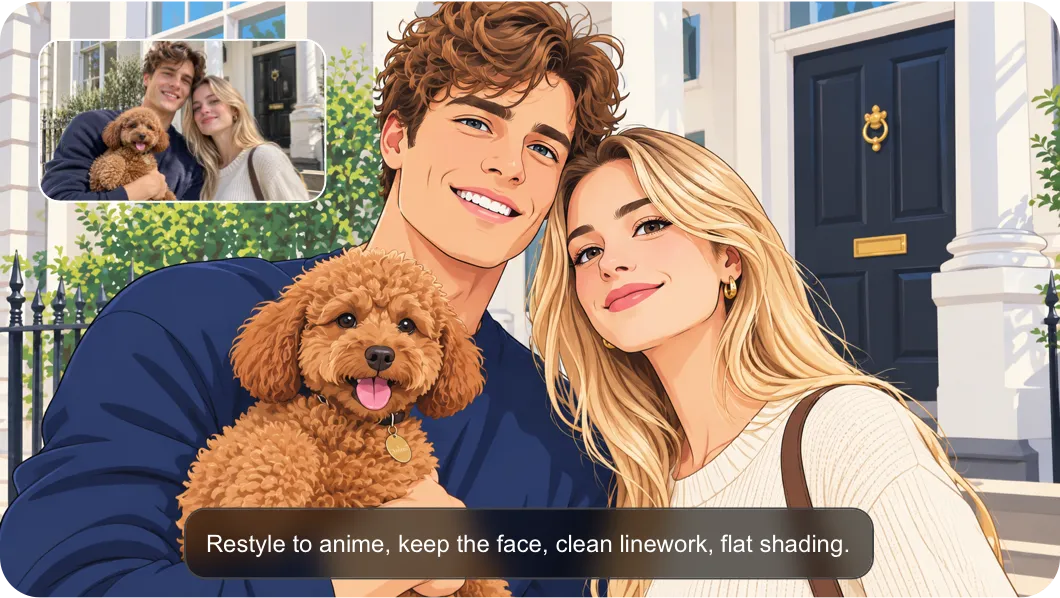
Anime restyle that keeps the original face, with clean linework and flat shading

Prompt 2 — Anime Re-Skin with Face Lock

Structure

Style: anime
Subject: restyle to anime
Reference: keep the face
Aspect: (source ratio)
Mood: clean linework, flat shading

Why it works

  • keep the face — Nano Banana Pro and Midjourney both preserve identity when explicitly told
  • anime + clean linework, flat shading — narrows the anime sub-style so the model doesn't pick a different anime aesthetic each run
  • Ideal for character turnaround sheets — pair with Seed Lock across a series
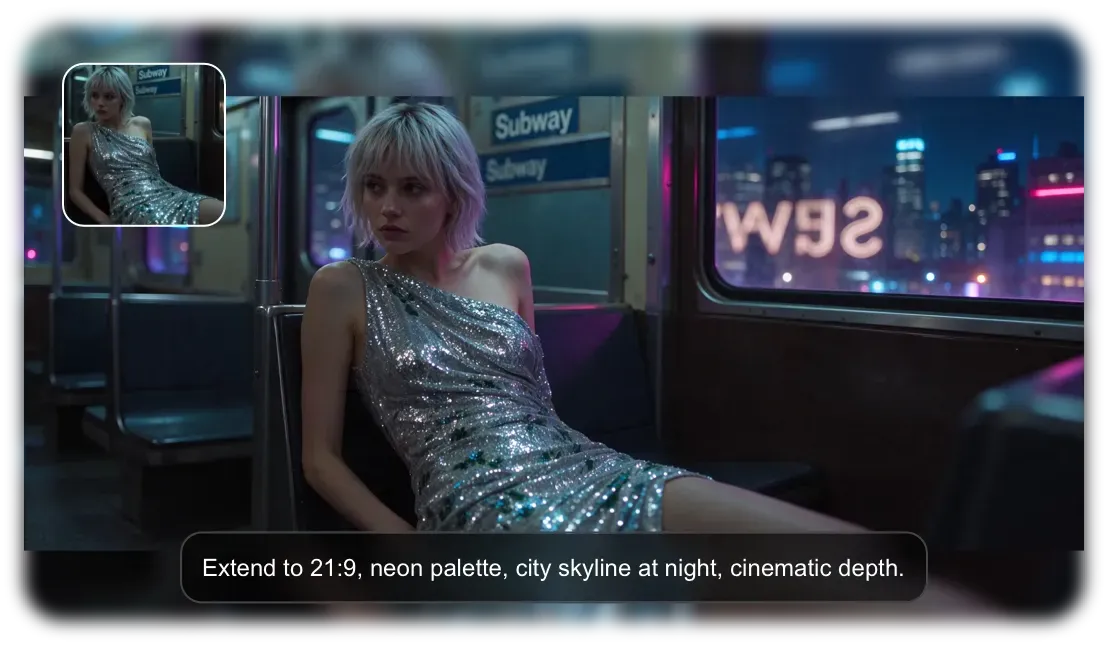
City skyline extended to a 21:9 cinematic frame with a neon palette

Prompt 3 — Landscape Expansion to 21:9

Structure

Style: cinematic
Subject: extend to 21:9
Reference: city skyline
Aspect: 21:9
Mood: neon palette, cinematic depth

Why it works

  • Extend to 21:9 — sets the crop target; the model fills the new edges with the same aesthetic
  • city skyline at night — gives the model a content anchor for the extended edges (instead of generic blur)
  • cinematic depth — pushes Seedream 5 Pro and GPT Image 2 toward foreground/midground/background layering
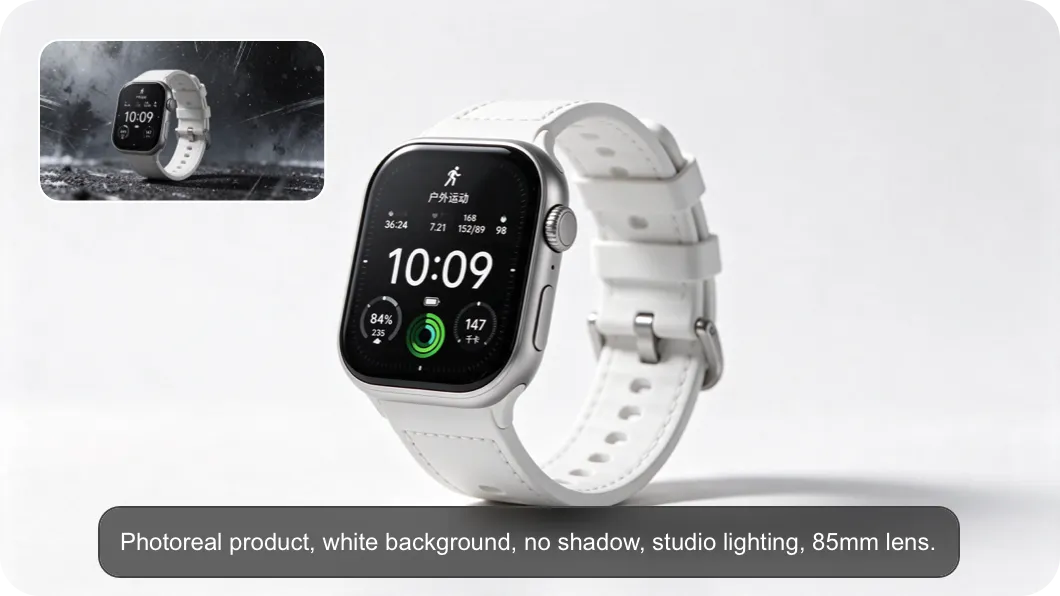
Product photo on a white background with studio lighting and no shadow

Prompt 4 — Product on White Background

Structure

Style: photoreal
Subject: product on white background
Reference: source product
Aspect: 1:1
Mood: studio lighting, no shadow, 85mm lens

Why it works

  • white background, no shadow — the cleanest e-commerce hero brief; GPT Image 2 and GPT-4o both nail this
  • 85mm lens — a real focal length that triggers product-photography behaviour on photoreal models
  • Drop-in for Amazon / Shopify / Etsy listings
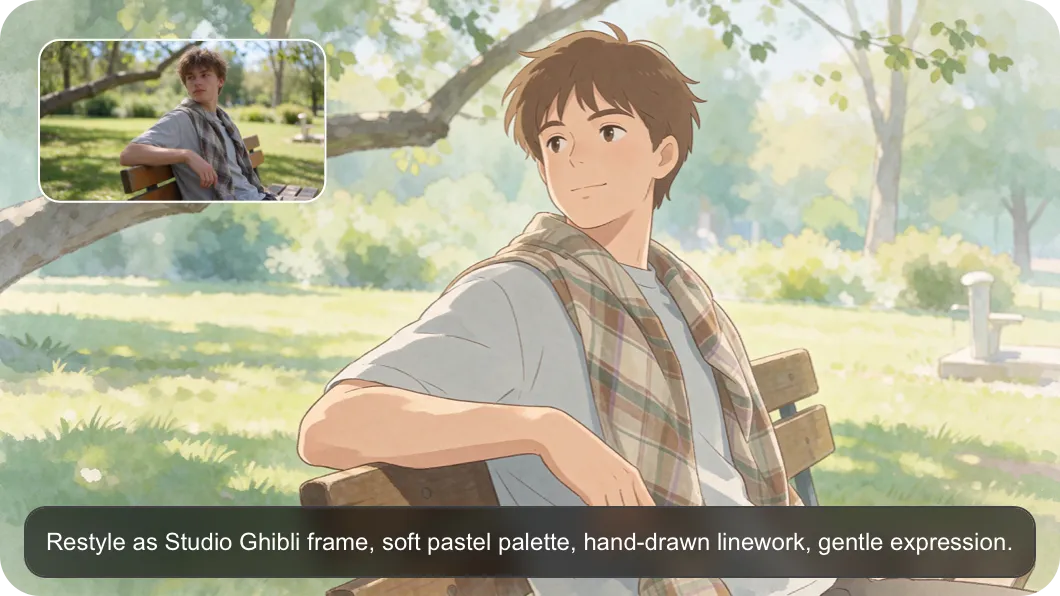
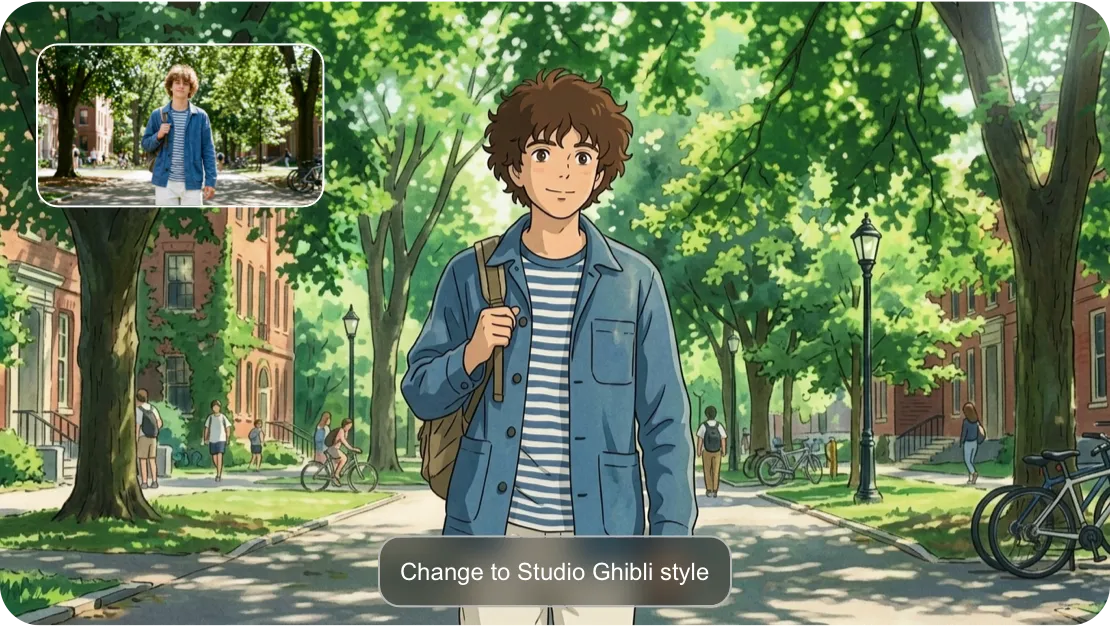
Studio Ghibli illustration with a soft pastel palette and hand-drawn linework

Prompt 5 — Studio Ghibli Illustration

Structure

Style: Studio Ghibli illustration
Subject: restyle as illustration
Reference: (source photo as composition anchor)
Aspect: (source ratio)
Mood: soft pastel palette, hand-drawn linework, gentle expression

Why it works

  • Studio Ghibli — a specific reference Midjourney and Grok Imagine both recognise, vs vague anime
  • soft pastel palette + hand-drawn linework — locks the colour temperature and stroke style
  • gentle expression — nudges the model toward friendly, non-threatening character work
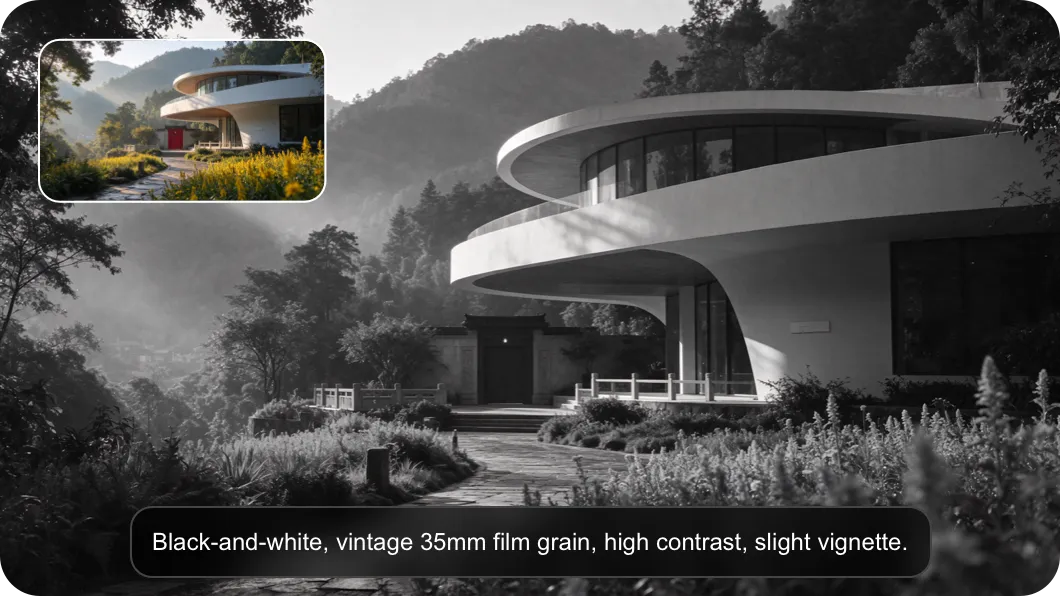
Black-and-white vintage photo with 35mm film grain, high contrast, and a slight vignette

Prompt 6 — Black-and-White Film Grain

Structure

Style: black-and-white vintage
Subject: (source photo)
Reference: (none)
Aspect: (source ratio)
Mood: 35mm film grain, high contrast, slight vignette

Why it works

  • vintage 35mm film grain — explicitly references a film stock, which GPT Image 1.5 and Seedream 4.5 both map to a known aesthetic
  • high contrast — locks the tonal curve
  • slight vignette — adds a frame edge without overwhelming the composition
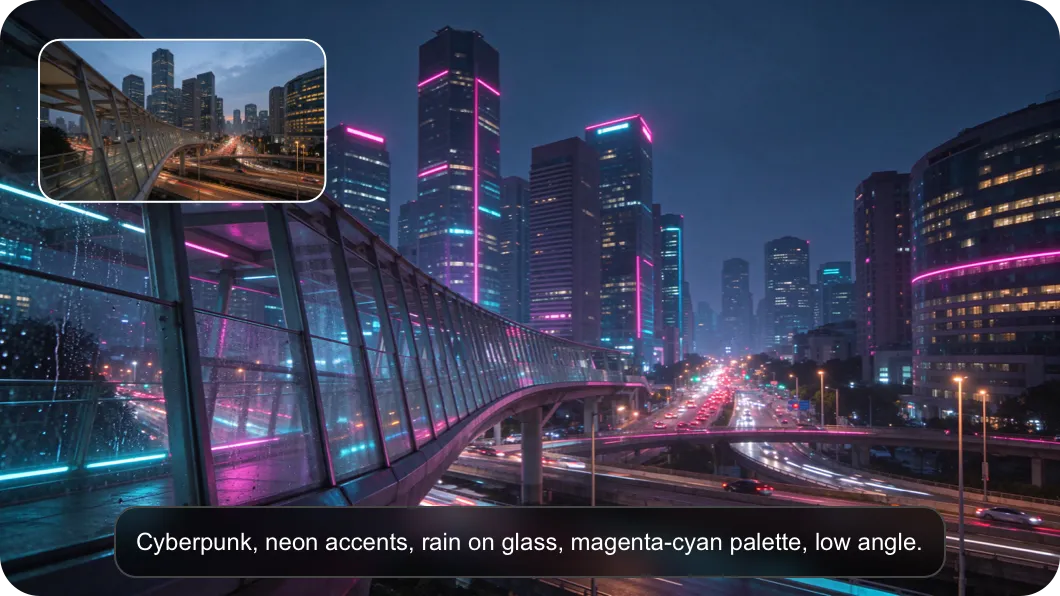
Cyberpunk restyle in 16:9 with neon accents, rain on glass, and a magenta-cyan palette

Prompt 7 — Cyberpunk Music Video

Structure

Style: cyberpunk
Subject: (source photo)
Reference: (none)
Aspect: 16:9
Mood: neon accents, rain on glass, magenta-cyan palette, low angle

Why it works

  • magenta-cyan palette — a specific colour combo that pushes Seedream 5 Pro and Grok Imagine toward sci-fi music-video aesthetic
  • rain on glass — adds texture without changing composition
  • low angle — a camera cue that re-frames the subject dramatically
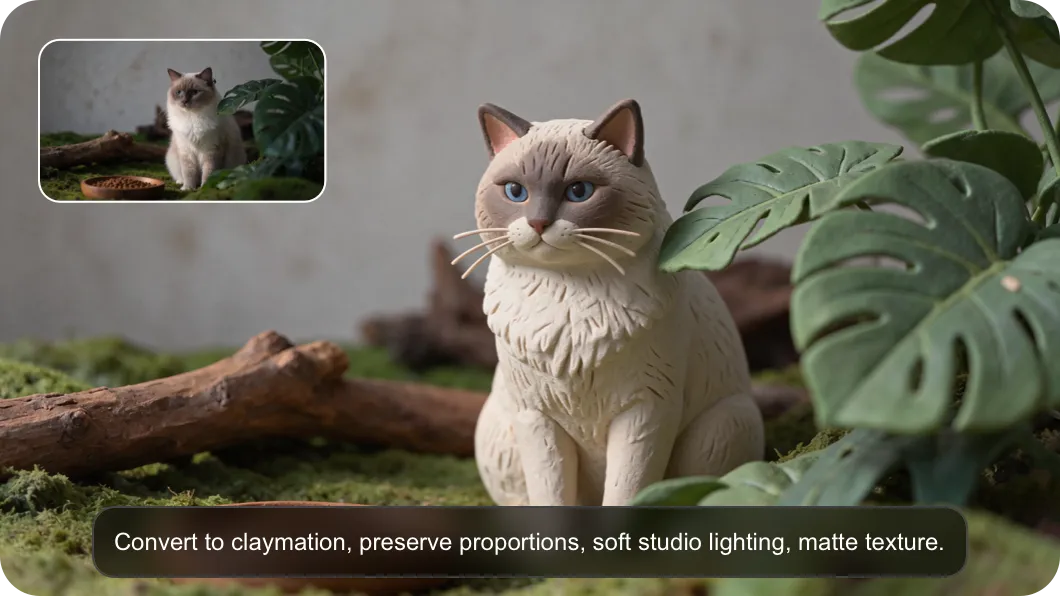
Claymation restyle that preserves proportions, with soft studio lighting and a matte texture

Prompt 8 — Claymation Re-skin

Structure

Style: claymation
Subject: convert to claymation
Reference: (source photo)
Aspect: (source ratio)
Mood: preserve proportions, soft studio lighting, matte texture

Why it works

  • preserve proportions — Midjourney and Grok Imagine both honour this, keeping the source silhouette intact
  • claymation + matte texture — narrows the stop-motion aesthetic so the model picks clay over plasticine or wax
  • soft studio lighting — kills any harsh specular highlights that clay shouldn't have

How to Use Image to Image AI

1
Open the Image to Image Tool
Open viddo.ai/image-to-image in any modern browser. Sign in or create a Viddo AI account in one click. The Image to Image canvas loads directly at the URL. The model picker, the upload zone, the prompt editor, the aspect ratio and resolution controls, the Generate button, and the Latest and History tabs are already on screen. No dashboard hop, no model swap to a separate page.
2
Pick a Model and Upload Your Image
Click the model picker at the top of the canvas and choose any of the 11 Image to Image AI models — start with GPT 2.5 Image for a fast first pass, or jump straight to Seedream 5 Pro, Nano Banana Pro, or Midjourney for a specific style. Drag and drop a source image into the upload zone, or click to pick one from your device. The upload counter shows `image(0/16)` so you know how much reference room is left.
3
Write a Prompt (or Click Translate)
Type a short instruction in the prompt editor — describe the style, mood, or change you want the new image to carry. Keep the prompt between 5 and 15 words for the strongest results. If you brief in a language other than English, click the Translate button beside the prompt editor and Viddo AI rewrites the prompt for the selected model.
4
Pick Aspect Ratio and Resolution, Then Generate
Pick the aspect ratio that matches the placement (1:1, 16:9, 9:16, 4:3, 3:4, 3:2, 2:3, 21:9, or adaptive) and the resolution tier (1K, 2K, or 4K). Click Generate, watch the result appear in the Latest tab, switch models on the same brief without re-uploading, and download the final output when the look is right.

Who Can Benefit from Image to Image Tool

Marketers and Ad Creatives

Transform product shots into stylized campaign visuals for paid social, email, and display. The Image to Image AI generator is ideal for creating variations and mockups for A/B testing, seasonal promotions, and channel-specific crops — produce a 1:1 Instagram cut, a 9:16 Stories cut, and a 16:9 hero banner from the same source photo in one workspace.

Content Creators and Influencers

Generate eye-catching, themed visuals for social media feeds and short-form video thumbnails. The Image to Image AI generator helps creators maintain a consistent visual identity across a series — same character, same palette, same composition — without booking a studio or paying a retoucher for every variation.

Photographers and Visual Storytellers

Enhance photos, generate alternative versions, and add artistic effects without leaving the original RAW-style composition. The Image to Image AI generator gives photographers a fast way to test colour grades, mood treatments, and stylised re-renders for editorial pitches, client reviews, and portfolio expansion — a single upload can become a dozen creative directions in an afternoon.

Game Designers and Concept Artists

Speed up concept development by evolving characters, environments, and props from rough ideas into polished visuals. The Image to Image AI generator takes a quick block-in sketch and re-renders it as a finished concept illustration, a turnaround sheet, or a multi-angle character study. The multi-reference upload zone is built for prop sheets, mood references, and lighting studies that need to stay coherent across several assets.

Digital Artists and Illustrators

Reimagine sketches, enhance compositions, or explore new art styles with minimal effort. The Image to Image AI generator takes a rough line drawing and re-renders it as a finished illustration in a chosen style — watercolour, ink, cel-shaded, oil, risograph — while preserving the artist's original composition. Use Seed Lock to keep a character recognisable across a series of style experiments.

E-commerce Sellers and Product Marketers

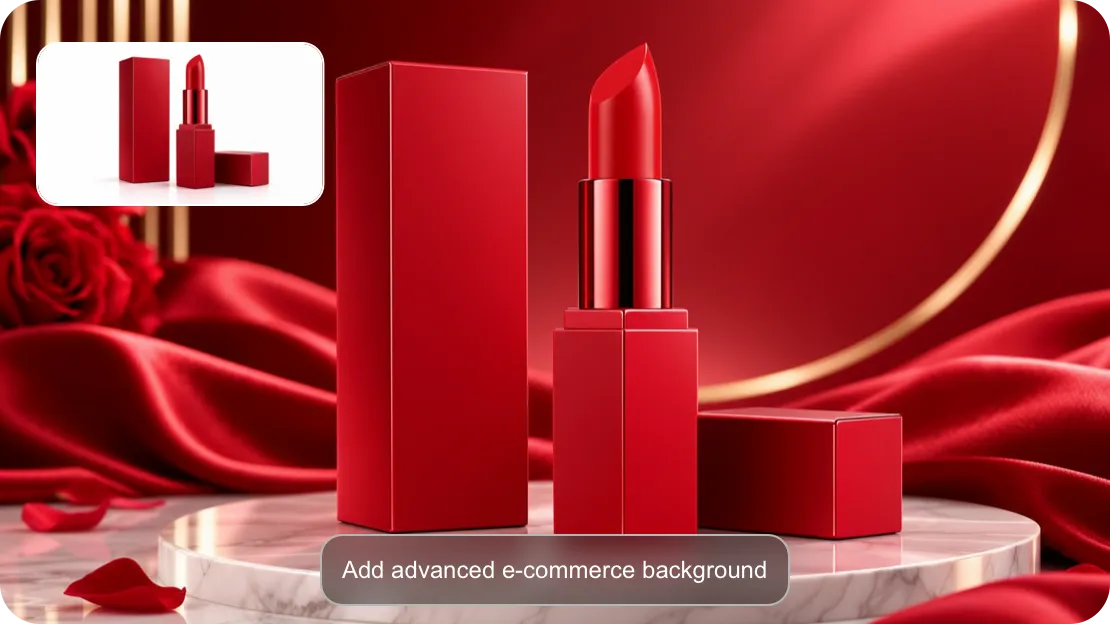
Turn one white-background product shot into a complete campaign asset library: lifestyle placement, seasonal mood, gift-ready hero, and platform-specific crops. The Image to Image AI generator pairs the multi-reference upload zone with the 9-ratio picker, so a single product photo can become a full retail kit — Instagram square, Stories vertical, marketplace hero, and email banner — in one workspace.

Happy Users of Image to Image on Viddo AI

Lena M., Concept Illustrator

Viddo AI's Image to Image generator completely changed how I work as a digital artist. I drop a rough line drawing into the upload zone, pick Midjourney or Nano Banana Pro, and get a finished illustration back in a style I would have spent two days painting. Seed Lock keeps my protagonist recognisable across a 12-page series — same face, same palette, every page.

Chris T., Freelance Designer

I use the Image to Image tool to mock up campaign visuals for five retainer clients every week. I upload the client's product shot, type a short prompt, and ship 1:1, 9:16, and 16:9 versions of the same creative in one afternoon. My Photoshop time is down by about 70% and my client revisions come back with cleaner feedback because the variations look intentional from the start.

Morgan L., Brand Strategist

As a marketer, I needed a tool that could turn one brand photograph into a season's worth of social assets without losing the brand KV. Viddo AI's Image to Image generator does exactly that — Seed Lock plus the multi-reference upload zone keeps our hero product recognisable across summer, autumn, and holiday cuts. The 11-model lineup means I can A/B test Midjourney against Nano Banana Pro on the same brief and pick the look that fits the channel.

Dev R., Content Creator

I've been publishing AI-restyled portraits on social for six months. Viddo AI is the first tool that lets me brief in Hindi, click Translate, and ship a finished English prompt without rewriting the brief by hand. The 4K output is sharp enough to print, the 9:16 cut drops straight into Reels, and switching between GPT Image 2 and Grok Imagine on the same source photo gives my feed the variety my audience keeps asking for.

Alex K., Photographer

I've been adding AI-restyled variations to my portrait portfolio through Viddo AI's Image to Image generator. The Flare and Sunburst versions of the same model are a useful A/B pair — I show both to the client and let them pick the look. The Seed Lock control is what makes this workflow trustworthy: I can return to a brief two weeks later and the character still looks like the same person.

Jia W., Indie Filmmaker

The Image to Image generator helped me build a complete mood board for my short film in a single afternoon. I uploaded stills from each scene, dropped in 12 reference frames per scene, and ran them through Nano Banana Pro and Seedream 5 Pro with a short prompt for each. The history tab kept every iteration, so I could compare mood treatments across models without losing a single draft.

Learn more on Image to Image AI Tool

1

What is an Image to Image AI Generator?

An Image to Image AI Generator is a tool that takes an existing photo as input and returns a transformed photo as output, guided by a text prompt. Viddo AI's Image to Image generator gathers 11 flagship Image to Image models into one canvas, so you can restyle, reimagine, or remix the same source photo across models without re-uploading.

2

Do I need design experience to use the Image to Image tool?

No design experience is required. The Image to Image AI generator is built for first-time creators: drop a photo into the upload zone, pick a model, type a short prompt, and click Generate. The 5-to-15-word prompt pattern is a reliable starting point for any style, mood, or composition change.

3

How many reference images can I upload?

The Viddo AI Image to Image upload zone accepts up to 16 reference images in one brief. The upload counter in the canvas reads `image(0/16)` so you always see how much reference room is left for the current run.

4

What Image to Image models are available on Viddo AI?

Viddo AI's Image to Image generator exposes 11 flagship models in one dropdown: GPT 2.5 Image, GPT Image 2, Nano Banana 2, Grok Imagine, Seedream 5 Pro, Nano Banana Pro, Seedream 4.5, GPT Image 1.5, Nano Banana, GPT 4o, and Midjourney. Each model has its own dedicated page for deeper prompt guidance.

5

Is the Image to Image generator suitable for commercial projects?

Yes. Viddo AI's Image to Image generator is designed for commercial use — marketing visuals, product mockups, brand assets, content production, and e-commerce listings are all part of the intended workflow. Check the latest licence terms on the Viddo AI plans page before publishing.

6

How long does it take to generate a new image?

Most Image to Image generations complete in seconds, depending on the chosen model's complexity, the resolution tier, and the size of the source photo. 1K generations return fastest; 4K generations take longer but stay within the same canvas session so you can keep iterating without reloading.

Discover More

Get Started with Image to Image on Viddo AI

Open Viddo AI's Image to Image generator, drop in a source photo, and run the same brief across 11 flagship Image to Image models in one canvas — no platform switching, no re-uploading, no separate editor for every model.
Get Started with Image to Image on Viddo AI
viddo.ai

Viddo AI is an advanced all-in-one AI video and image generation platform that lets you quickly and easily create stunning videos and images from various inputs. These AI Model powered by Google, OpenAI, Grok AI, ByteDance, Alibaba, Kling, Runway, Vidu, Minimax, Elevenlabs, Midjourney,and so on.

© 2026 viddo.ai. All rights reserved.