
Seedance 2.0: As low as $0.345 per video
Veo3.1 Lite: As low as $0.0575 per video


Waiting for your creations!
Applicable to All Extension Scenarios
| Step1 | Generate the Initial Video Method 1: Text to Video Enter the Text to Video function page, select a supported extendable model, input the initial prompt (clearly specify the scene, subject/characters, and style), and click [Generate] to get the initial video. Method 2 : Image to Video Enter the Image to Video function page, select a supported extendable model, upload a reference image, add supplementary prompts (describe the image style and dynamic details to be presented), and click [Generate] to get the initial video. |
| Step2 | Trigger Extension After the initial video is generated, find the [Extend] button below the video and click it to automatically jump to the dedicated Video Extend page. |
| Step3 | Confirm Video to Extend After jumping, the "Video to be extended" area will automatically load the newly generated initial video. No manual selection is needed; proceed directly to the next step. |
| Step4 | First Extension In the prompt input box on the page, clearly describe the content to extend (e.g., "The character walks to the door, pushes it open, and enters the room"), and it is recommended to maintain the same style and detailed description as the initial prompt. No need to set parameters such as duration or resolution—the system will automatically match the parameters of the previous video. Click the [Generate] button and wait 3–4 minutes to complete the extension. |
| Step5 | Multiple Extensions After each extension, click the [Extend] button below the successfully extended video. The "Video to be extended" area will update automatically. You can directly input the next prompt and click [Generate] to achieve unlimited extension. |
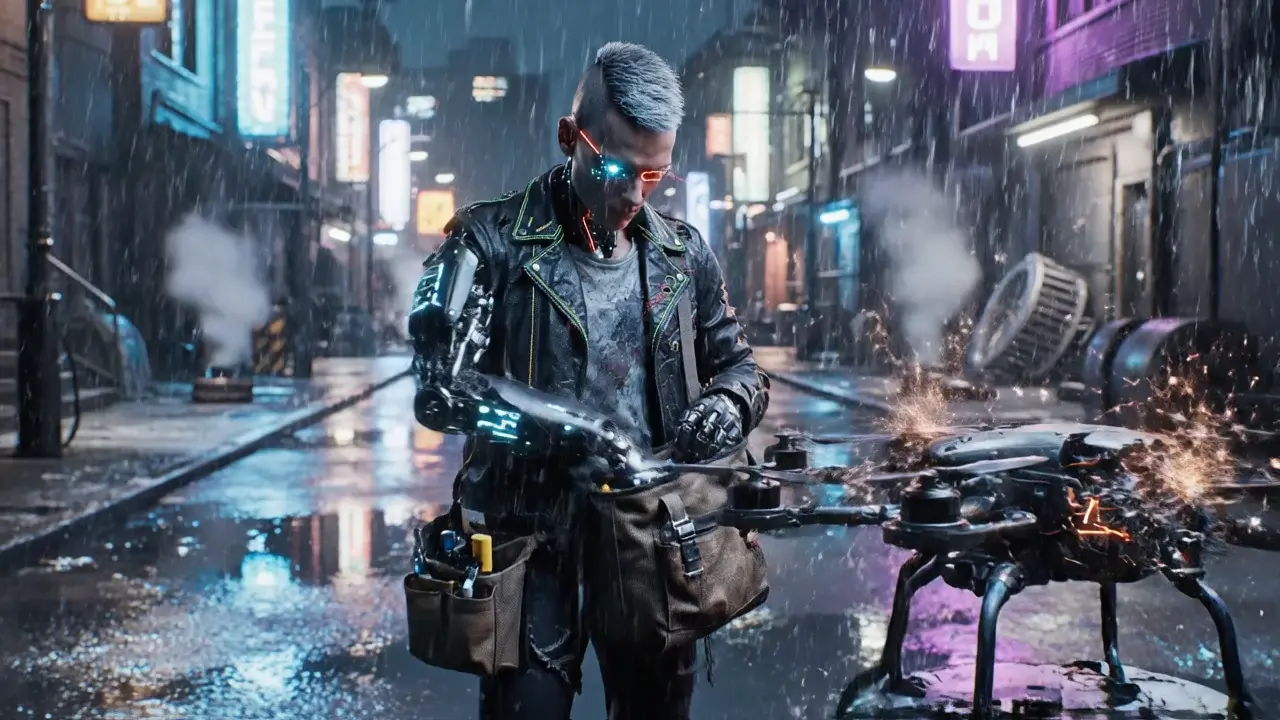
Create an 88-Second Cyberpunk Mechanic Adventure Short Film
Below is a step-by-step guide to creating an 88-second cyberpunk short film (an adventure story of the protagonist "Kael"), helping you quickly master the full process. This example uses Text to Video for the opening clip, then completes the rest via extension to get the full 88-second video, with 11 precise prompts (ready for direct copy).
Example Core Material: 11 Ready-to-Copy Prompts
These prompts are optimized for extension logic, covering the complete plot of "Protagonist Appearance → Accept Mission → Overcome Obstacles → Repair Core → Safe Evacuation" with a consistent protagonist image, ready for direct use:
| Step1 | Generate Opening Video Enter the Text to Video page, select any supported extendable model, paste Prompt 1, and click [Generate] to wait for completion. |
| Step2 | Enter Extension Page After generation, click [Extend] below the video—the system jumps to the Video Extend page and automatically loads the video into the "Video to be extended" area. |
| Step3 | First Extension Paste Prompt 2 into the input box on the Video Extend page, click [Generate], and the system will automatically create seamless extended content. |
| Step4 | Complete Full Video Extension After the first extension, click [Extend] directly—the "Video to be extended" area updates to the newly extended video. Repeat Step 3, paste Prompts 3–11 in order, and click [Generate] each time to get the full 88-second cyberpunk short film. |
Video Extend is a powerful tool that allows you to extend the duration of your videos infinitely. It is easy to use and fast to generate.
The key is to include consistent style keywords and detailed descriptions in the extension prompt. For example, if the initial prompt has "retro film style, warm yellow tone", add these details to the extension prompt. If a style deviation has already occurred, explicitly state "maintain the same retro film style and warm yellow tone as the previous video" in the extension prompt and regenerate.
Improve prompt accuracy and avoid vague descriptions. For example, instead of writing "character moves" for a slow walk, specify "character walks forward slowly with steady steps". If issues persist, add constraints such as "do not include XX action" or "focus on XX details" in the prompt to narrow the AI's creation scope.
Explicitly link the core elements of the reference image in the extension prompt. For example, if the reference image is "a white cat lying on the sofa", the extension prompt should be "the white cat jumps off the sofa and walks to its food bowl", plus "keep the cat's fur color and size consistent with the reference image" to strengthen the AI's memory of reference elements.
Yes. After generating the initial video, first complete and download one extension direction. Then click [Change] next to "Video to be extended", select the initial video via Select Video, and input prompts for a new direction to generate extended content with different plots.
After each extension, a [Download] button appears on the page—click it to save the complete extended video locally. All generated and extended videos are automatically synced to your account's "My Creations" for viewing and downloading anytime.
Keep it within 800 characters. It doesn't need to be long but must include core information (subject + action + scene). Overly short prompts may cause AI deviation; overly long prompts may dilute plot focus. Concise and precise descriptions yield better results.
Viddo AI is an advanced all-in-one AI video and image generation platform that lets you quickly and easily create stunning videos and images from various inputs. These AI Model powered by Google, OpenAI, Grok AI, ByteDance, Alibaba, Kling, Runway, Vidu, Minimax, Elevenlabs, Midjourney,and so on.